

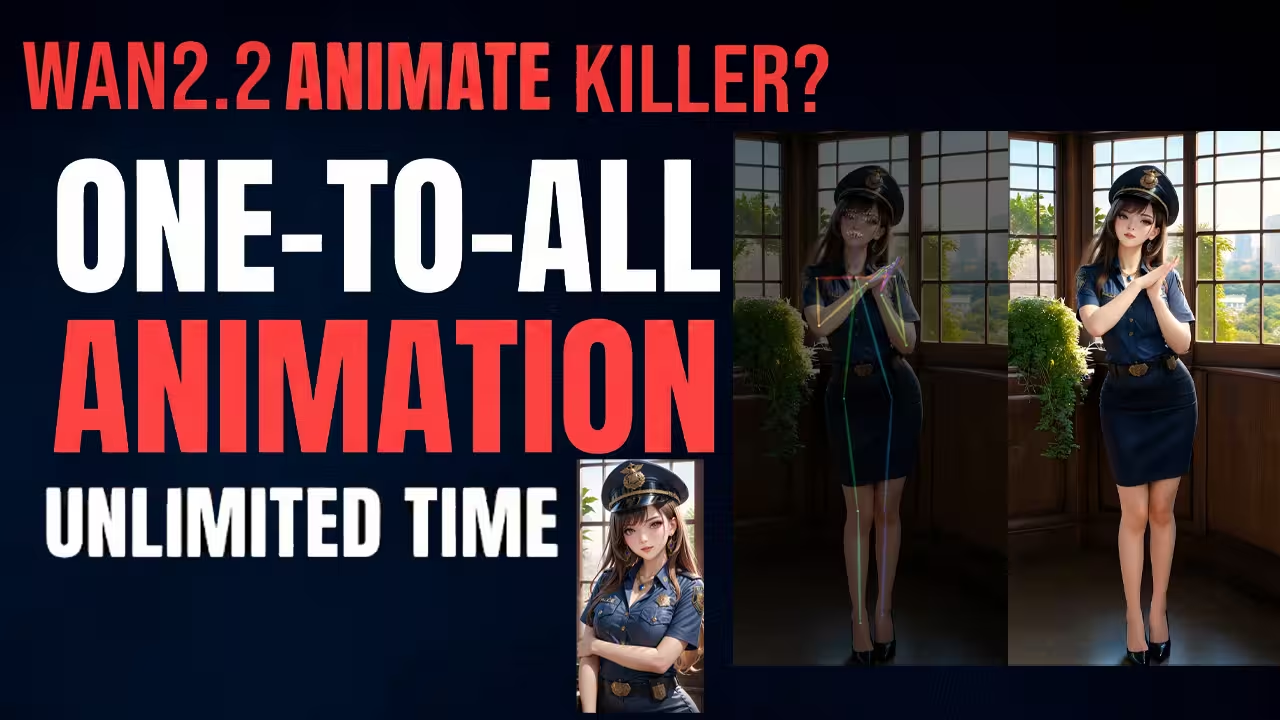
So a new model called One-to-All Animation is finally out.
It is meant for character animation just like Wan2.2 Animate.
The claim is that it can do better than Wan2.2 Animate. On the official demo page I saw one example made with Wan2.2 Animate and the other example was made with One-to-All Animation.
If you look closely you will see the difference. In the One-to-All clip the face and hands stay much cleaner. There are fewer glitches and the details look more stable than the Wan2.2 Animate version.
So the first question is simple.
Is this really better and if yes then why.
The funny part is that One-to-All Animation is still built on the older Wan2.1 style architecture and not some brand new backbone. Wan2.2 Animate is the newer model. But the method that One-to-All uses is smarter.
Wan2.2 Animate tries very hard to force your reference image to match the pose skeleton almost pixel perfect. That is good for motion but it can also create face warping and random glitches when the skeleton is not perfect.
One-to-All works in a different way. It first understands the character identity from your reference image. Then it separates the person and the pose. It treats the pose more like a guide and not like a hard constraint. So even if the base model is older the method that sits on top is more intelligent.
Now I will show you the workflow and the files you need and how I set it up inside ComfyUI.
Files You Need To Download
Before we open the workflow let us collect all the files.
For pose detection you need two ONNX models.
First you need a YOLOv10m ONNX file. You have to download the model and save it in your ComfyUI models detection folder.
Second you need a whole body pose model. In my setup this is a file like dwpose wholebody onnx or withpose wholebody onnx.
Download that pose whole body ONNX file and save it in the same folder which is models detection.
So for the ONNX detection model loader node you will use these two files. These two will handle detection and full body pose for the workflow.
Next you need the actual One-to-All model.
For this workflow I am using the FP8 version of the model.
Download that file and put it in your models diffusion models folder. That is your main One-to-All Animation model.
For the text encoder and VAE I am reusing the same Wan2.1 or Wan2.2 files that I use in my earlier Wan workflows. So you do not have to change those if you already have Wan working.
Just make sure the text encoder and VAE paths are set correctly in your WanVideoWrapper nodes.
Once all these files are downloaded and saved in the right folders we are ready to open the workflow.
