


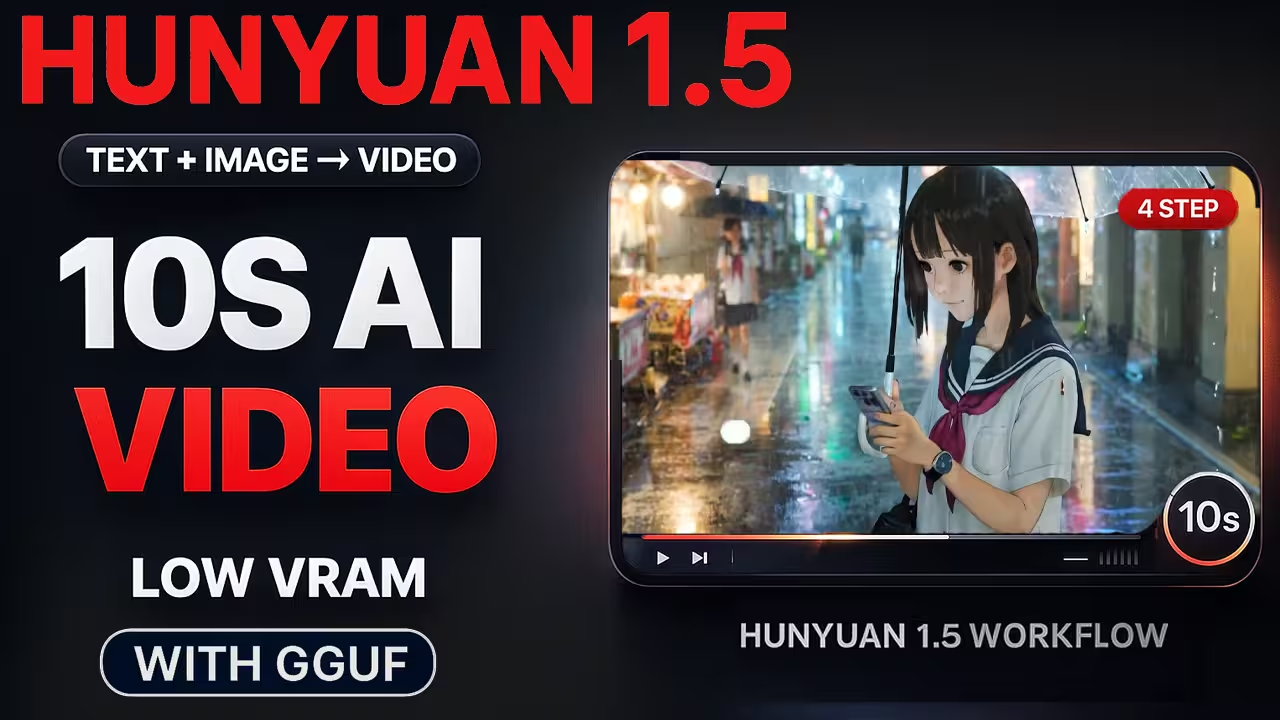
In this post I am going to walk you through how I use Hunyuan Video 1.5 inside ComfyUI to make clean 10 second clips on normal hardware.
My goal with this workflow is simple
- You can start with text to video
- Or you can start with image to video
- You keep the base render at 480p, only use 4 or 6 steps with the LightX2V LoRA
- Then you upscale to 720p or 1080p and let the SR models add all the tiny details
HunyuanVideo 1.5 is a lightweight open video model from Tencent Hunyuan. It has around 8.3 billion parameters, and it is designed to run on consumer GPUs while still giving very high visual quality.
The nice part is that Hunyuan Video 1.5 has both text to video and image to video in one all in one pipeline, with a cascaded super resolution stage for higher resolutions.
So in this ComfyUI setup I am basically taking what the model is already good at and making it easy for you to
- Work on mid range GPUs and low VRAM builds
- Keep the workflow clean and readable
- Still get results that look close to what you see in official Hunyuan video ai demos
You can treat this as your base hunyuan video comfyui workflow and then tweak it for your own style.
ComfyUI Hunyuan setup
Before we jump into folders and nodes, let me give you a quick overview so you know what you are building.
- Base generation
- HunyuanVideo 1.5 T2V for text to video
- HunyuanVideo 1.5 I2V for image to video
- Resolution around 848 by 480 for the base clip
- Frame count from 81 to 241 depending on video length
- Speed boost
- I use the LightX2V 4 step LoRA on the base T2V model
- For most clips I stay at 6 steps
- When I really want speed I try 4 steps
- Detail and resolution
- A latent upscaler model jumps from 480p latent to 720p or 1080p latent
- Then an SR model adds details at that higher resolution
- There is a separate add details group with low denoise to sharpen things even more
All of this is wrapped into two main workflows
- One for text to video
- One for image to video
They share the same upscale and SR parts, so once you learn one, the other feels very familiar

Files You Need To Download For HunyuanVideo 1.5 ComfyUI
For this HunyuanVideo 1.5 ComfyUI workflow, you only need to set up a few folders and drop the right files inside them. I will list everything in one place so you can follow step by step.
1. HunyuanVideo 1.5 diffusion models
These are the main diffusion model files for text to video and image to video.
https://huggingface.co/Comfy-Org/HunyuanVideo_1.5_repackaged/tree/main/split_files/diffusion_models
ComfyUI folderComfyUI/models/diffusion_models/
Just download the diffusion model files from this page and place them in the diffusion_models folder.
2. HunyuanVideo 1.5 I2V 720p GGUF model
If you want to run image to video on low VRAM, you can use the GGUF build. It is very friendly for smaller GPUs.
https://huggingface.co/jayn7/HunyuanVideo-1.5_I2V_720p-GGUF/tree/main/720p
ComfyUI folder
You can keep it in the same diffusion_models folder or in a separate GGUF folder, depending on how your GGUF loader node is set up.
3. HunyuanVideo 1.5 T2V 720p GGUF model
This one is for text to video in GGUF format, also aimed at low VRAM users.
https://huggingface.co/jayn7/HunyuanVideo-1.5_T2V_720p-GGUF/tree/main/720p
ComfyUI folder
Same as above, keep it with your other GGUF models so the loader node can find it.
4. Clip Vision models for HunyuanVideo
These files handle the vision side and are used by HunyuanVideo for image understanding and some parts of the pipeline.
https://huggingface.co/Comfy-Org/HunyuanVideo_1.5_repackaged/tree/main/split_files/clip_vision
ComfyUI folderComfyUI/models/clip_vision/
If you do not have this folder, you can create it.
5. Latent upscale models
These models are used when you want to upscale HunyuanVideo latent space to a higher resolution without killing your VRAM.
ComfyUI folderComfyUI/models/latent_upscale_models/
Drop all the latent upscale model files here so the upscale nodes in your workflow can see them.
6. HunyuanVideo 1.5 LoRAs
LoRAs let you change style or fine tune the look of your video without loading a full new model.
You can enable them inside ComfyUI the same way you use LoRAs for image workflows.
https://huggingface.co/Comfy-Org/HunyuanVideo_1.5_repackaged/tree/main/split_files/loras
ComfyUI folderComfyUI/models/loras/
Pick the LoRAs you need from this page and save them in the loras folder.
7. Text encoder files
Text encoders turn your written prompt into something the model understands.
HunyuanVideo 1.5 uses its own set of text encoder files.
https://huggingface.co/Comfy-Org/HunyuanVideo_1.5_repackaged/tree/main/split_files/text_encoders
ComfyUI folderComfyUI/models/text_encoders/
Make sure the file names match what your loader node expects in the workflow.
8. VAE for HunyuanVideo 1.5
The VAE is the part that converts latent space to visible frames and back.
Using the correct VAE keeps your colors and details stable.
https://huggingface.co/Comfy-Org/HunyuanVideo_1.5_repackaged/tree/main/split_files/vae
ComfyUI folderComfyUI/models/vae/
Download the VAE files from this page and place them inside the VAE folder.
Workflow Download
