

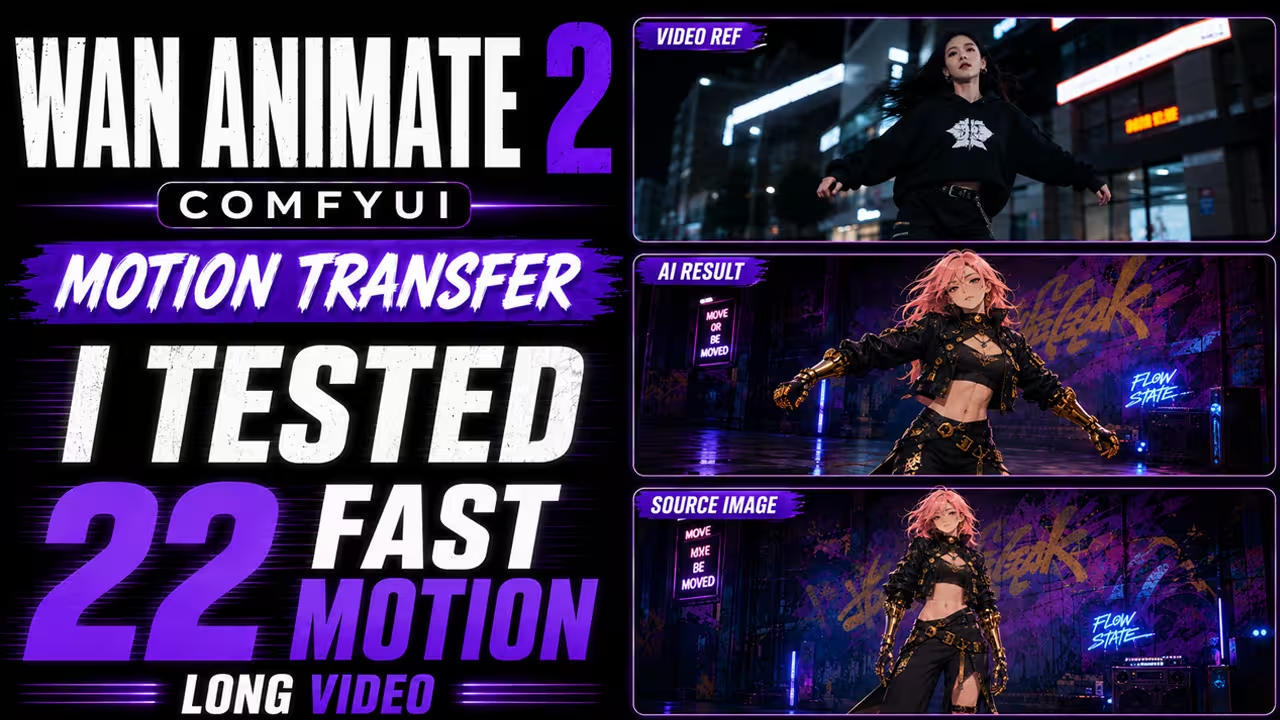
Wan Animate 2 is a major improvement for character motion transfer.
I tested it with fast dance videos, different character images, background changes, and longer generations. Even in a difficult 22-second dance test, it followed the movement surprisingly well.
Wan Animate 2 works directly from a driving video. Unlike older workflows that may need pose or skeleton preprocessing, the model can use the video frames directly while preserving the reference character. It can also generate a new background and camera view from your prompt.
Wan Animate 2 Models
The official ComfyUI repository currently provides several versions of Wan Animate 2, including:
- INT8
- BF16
- Distilled INT8
- Distilled BF16
The official workflow also uses a LightX2V acceleration LoRA, UMT5-XXL FP8 text encoder, CLIP Vision H, and Wan VAE.
For my workflow, I used the Wan Animate 2 INT8 model with the Distill LoRA.
You can also use the dedicated distilled model. In that case, you do not need to use the separate Distill LoRA in the same way.
My Wan Animate 2 Settings
For my test, I used:
| Setting | Value |
|---|---|
| Model | Wan Animate 2 INT8 |
| LoRA | Distill LoRA |
| Steps | 6 |
| Scheduler | LCM |
| CFG | 1 |
| Add Noise | True |
| First segment | 81 frames |
I connected a reference image and a driving video to the main Wan Animate 2 workflow.
I also used separate prompts for the character and motion.
For the main positive prompt, I described the character and background.
For the pose prompt, I used a simple motion instruction such as:
Natural full-body motion following the driving video, matching body movement, posture, arm gestures, leg movement, and timing.
Keeping the character description and motion description separate worked well in my tests.
First Motion Transfer Test
For my first example, I used an image of a cat and a dance video.
The result stayed close to the reference character while following the movement from the driving video.
The body, arms, legs, and timing followed the dance surprisingly well.
This was already a good sign because the model had to transfer human movement to a very different character.
Changing the Background
Wan Animate 2 also let me create a different environment.
I changed my prompt from a simple white background to:
A bright school classroom with desks, soft daylight from the windows, and a clean indoor atmosphere.
The generated video placed the dancing character inside the classroom.
This means you are not forced to copy the exact background from the driving video.
The official Wan Animate 2 workflow is also designed to generate a fresh background from the text prompt.
Extending Beyond 81 Frames
For longer videos, I first tested the workflow manually.
I duplicated the Wan Animate 2 segment and connected:
- Continue Motion
- Video Frame Offset
to the previous segment.
This worked, but manually adding many segments becomes inconvenient for longer videos.
So I created an automatic version using Loop Start and Loop End nodes.
The workflow calculates how many continuation segments are required and keeps generating until it reaches the selected part of the reference video.
You can also control the length with Frame Load Cap.
For example, at 24 FPS:
224 frames is about 9 seconds.
This is useful when your reference video is several minutes long but you only want to generate a short section.
My 22-Second Fast Dance Test
The most difficult test was a 22-second fast dance video.
Fast movement is a good stress test because the model has to follow rapid changes in body position, arms, legs, and timing.
Wan Animate 2 handled this much better than I expected.
The generated character followed the dance closely, even during faster movements.
The background was not identical to my reference image because I did not find a dedicated setting in my workflow to lock it exactly.
Instead, I described a similar background in the prompt.
The result kept a similar environment while transferring the dance.
Anime Character Motion Transfer
I also tested the same workflow with an anime character.
I used the same type of simple pose prompt:
Natural energetic full-body street dance.
I did not need to write a complicated motion description.
The anime character followed the movement from the real dancing woman while keeping its own visual style.
This showed me that Wan Animate 2 can work with very different character designs, not only realistic human images.
Is Wan Animate 2 Worth Using?
From my tests, yes.
The strongest part is the motion transfer.
It handled:
- fast dance movement;
- different character types;
- background changes;
- longer video continuation;
- a 22-second generation;
- anime character animation.
My main workflow used 6 steps, LCM scheduler, CFG 1, and the INT8 model with Distill LoRA.
For me, the 22-second fast dance test was the most impressive result. The movement was difficult, but Wan Animate 2 still followed the driving video closely.
If your main goal is to take a character image and transfer motion from a reference video in ComfyUI, Wan Animate 2 is worth testing.

