

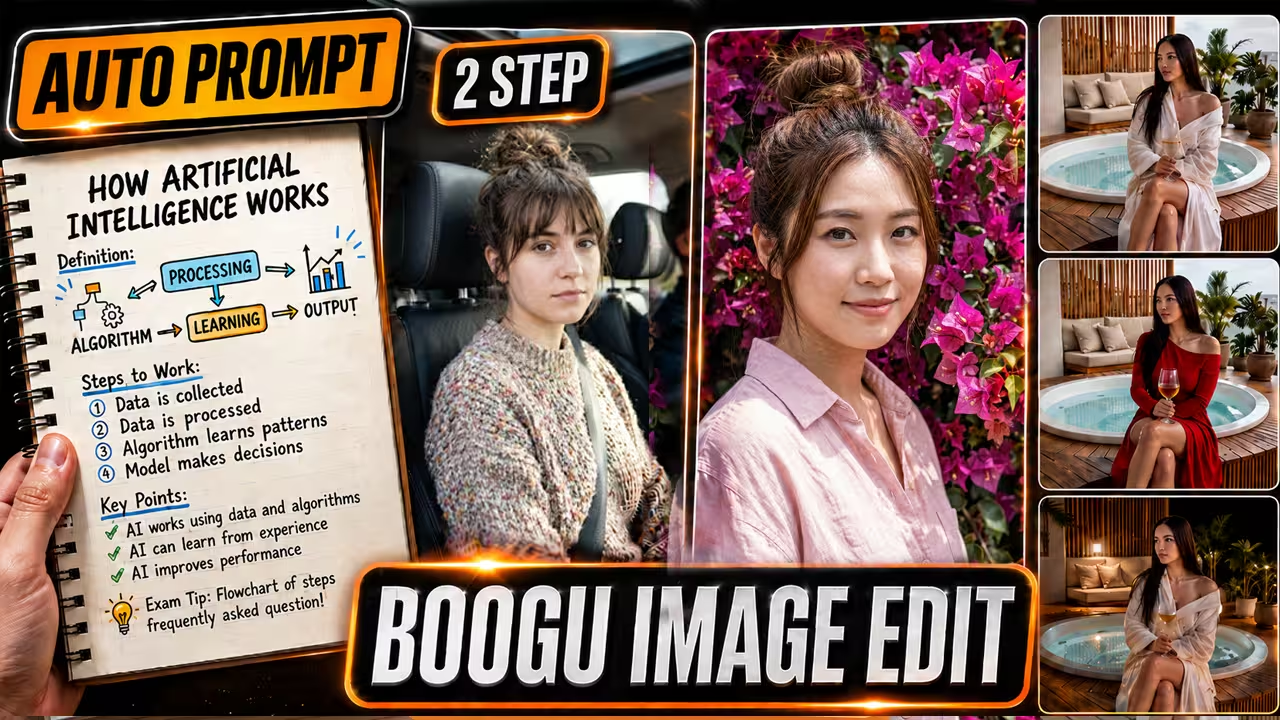
Before you begin, you need to understand the model options. Boogu-Image-0.1 has three variants: one for standard generation, one for fast generation, and one for image editing. For this workflow, we will focus on the Turbo FP8 model for fast generation and the Edit model for changing existing pictures.
Setting Up the Turbo FP8 Workflow
The Turbo model allows you to generate images very quickly. By using the Turbo LoRA, you only need two steps to get a great result.
Use the Qwen3-VL Text Encoder To make this work, load the Boogu-Image-0.1 Turbo FP8 model. Then, use the Qwen3-VL 8B FP8 text encoder. This specific encoder helps the AI render text perfectly inside your images. If you notice extra text artifacts in your results, ensure you are using the proper resolution sizes to fix the issue.
Auto-Prompting with Gemma 4 Writing perfect prompts can be difficult. You can build an auto-prompting workflow by connecting the Gemma 4 model to your text input. This automatically creates highly detailed instructions for Boogu to follow.
How to Set Up the Image Editing Workflow
The Turbo model is great for new images, but editing requires different nodes. First, select the Boogu-Image-0.1 Edit model.
The TextEncodeBooguEdit Node Search your ComfyUI nodes for TextEncodeBooguEdit. You must delete your old CLIP Text Encode node and replace it with this new one. Next, connect the image you want to edit from a Load Image node directly into the image1 slot.
Because the Edit model is not a Turbo model, you must change your settings. Set your steps to 25 and your CFG to 5.
Fixing Blurry Edits with the 4x UltraSharp Upscaler
In my tests, I tried to replace a cloudy sky with a night scene. The AI successfully replaced the sky, but it compressed the overall image quality.
When editing, some image quality is often lost. To fix this blurriness problem, I added a 4x UltraSharp upscaler node right after the Load Image node. When you run the prompt again, you will see that the blurriness problem is completely fixed, and the final image is clear.

