

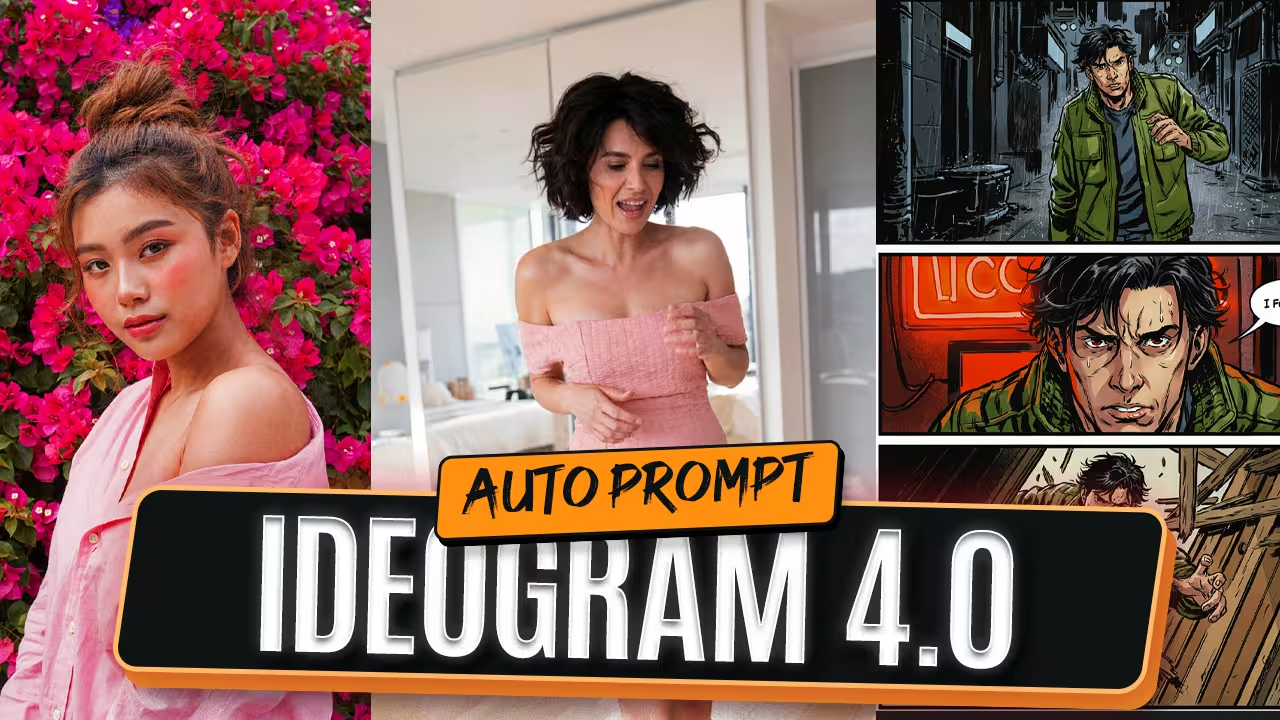
Are you getting plastic-looking skin and scrambled text when using the new Ideogram 4.0 model in ComfyUI? You are not alone. Ideogram 4.0 is incredibly powerful, but it requires a very specific setup and strict JSON prompting to work correctly. I tested this extensively, and I found the exact nodes you need to fix these issues. In this guide, I will show you how to build the workflow, use Gemma 4 to write your prompts automatically, and add a simple LoRA to make the skin look realistic.
The Best ComfyUI Nodes for Ideogram 4.0
Before you begin, make sure you update your ComfyUI to the latest version. You need to download two specific files from the official Ideogram Hugging Face page: the main Ideogram FP8 model and the Unconditional FP8 model.
Here is how you connect them.
Load the Main and Unconditional FP8 Models You need the DualModelGuider node. This node has two model inputs. Connect your main Ideogram FP8 model to the first input. Connect your Unconditional FP8 model to the negative input. Next, use the Qwen3-VL-8B FP8 model for your text encoder and connect it to your positive prompt using a CLIP Loader.
Fix the Negative Prompt with Conditioning Zero Out By default, ComfyUI sends text through every wire. However, the Unconditional FP8 model is designed to work without reading text. If you send negative words to it, the model breaks.
To prevent this, use a Conditioning Zero Out node. Connect it to your negative input. This stops text from passing through and forces Ideogram 4.0 to run exactly as it was designed.
Match Your Resolution Selector Finally, add an EmptyFlux2LatentImage node and an Ideogram4Scheduler node. You must use a Resolution Selector node to send the exact same width and height to both of these nodes. If the resolutions do not match, the image will not generate correctly. Set your sampler to Euler.
How to Automate JSON Prompts Using Gemma 4
Ideogram 4.0 is trained to work best with structured JSON prompts. If you just type a normal prompt like “robot in the city,” the image will look very bad. When you write the same idea in JSON format, the image quality improves massively.
Most people cannot write strong JSON code manually every time. To fix this, I use the Gemma 4 model to automate the process.
Write Simple Text for Gemma 4 Connect Gemma 4 to a TextGenerate node. Write your prompt in simple English in the Notes section. For example, type: “Create a high-contrast 16:9 technology video thumbnail.” Gemma 4 will read your simple text, convert it into perfect JSON format, and send it to Ideogram.
Copy Visual Styles from Reference Images You can also load a reference image. Connect your image to the text generation node. Gemma 4 will look at the image and write a JSON prompt in the exact same style. This is a fantastic way to create consistent storyboards.
How to Customize and Edit Text Boxes
If you want perfect text spelling, use the Ideogram 4 Prompt Builder node.
You can connect your JSON prompt to the Import JSON input. This opens a visual template. You will see different boxes representing the objects and text in your image.
You can adjust these boxes easily. You can make the text bigger, add an outline, or decrease the product size. You can even create a brand new box, place it anywhere on the image, and type new text like “Wild Dragon.” When you hit run, Ideogram puts the text exactly where you placed the box.
How to Fix Plastic Skin in Ideogram 4
The base Ideogram model often generates skin that looks like plastic.
Use the ZJourney LoRA To fix this, I use a LoRA called ZJourney for fantasy realism. Adding this LoRA instantly removes the plastic look and adds realistic textures.
If you want even more detail, you can increase your generation steps up to 48. Set your CFG Override to 3 and increase the DualModelGuider setting. This keeps the image consistent while adding incredible fine details.

