

If you look at the official requirements for the new LTX-2 model, they say you need massive hardware to run it. They claim you need 24GB or even 40GB of VRAM to generate a full 1-minute video.
But I found a backdoor.
By using the specific Q4 GGUF compressed model and a hidden “Tiled VAE” trick, I can run this on almost any low VRAM consumer GPU (even a 12GB card).
I am going to show you the exact workflow I used to break the limit, how to fix the “Out of Memory” crashes, and how to use the Camera LoRA to make your shots look professional.
Files You Need To Download
Before we start, we need to get the “Lite” versions of these models. I am not using the official massive files. I am using the GGUF versions by Kijai, a popular wrapper creator.
Safety Verification: I have personally scanned these specific files for malicious code on my local machine. They are verified safe versions from the official HuggingFace repository.
1. The Main Model (GGUF)
- Download LTX-2 Distilled Q4 GGUF
- Context: This is the 12GB compressed version. Since it is “Distilled,” you do not need an extra LoRA file; it is built-in.
2. The Text Encoders (You Need Both)
- Gamma 3.1 2B Safetensors
- LTX 2 90B Distilled BF16
- Context: Place both of these inside your
models/text_encodersfolder.
- Context: Place both of these inside your
3. The VAE Files
- LTX Video VAE BF16 (Put in
models/VAE) - LTX Audio VAE BF16 (Put in
models/VAE)
Critical Step: Update Your GGUF Nodes
Before you try to load this workflow, there is one critical step you must do, or ComfyUI will crash immediately.
You have to update your ComfyUI-GGUF nodes.
The old version does not support the LTX-2 architecture.
- Open ComfyUI Manager.
- Click “Update All.”
- Restart ComfyUI.
If you don’t do this, the loader will turn red and fail to load the Q4 model.
The Best Settings for Low VRAM
I started this test by comparing the official FP8 model (21GB) vs the Q4 GGUF model (12GB). When I tried the official model, my memory filled up instantly and everything stopped. When I switched to Q4, it ran perfectly.
Here are the specific settings you need to change to avoid crashing:
1. The Resolution Rule (Divisible by 32)
Most people try to run 1280×720. This is wrong. LTX-2 requires the resolution to be divisible by 32.
- Bad: 1280 x 720
- Good: 1280 x 736
- Low VRAM Mode: 640 x 360
If you have a 12GB card, start with 640×360. You can upscale it later.
2. The Frame Count Rule (8n+1)
You cannot just pick random frames. The model follows a strict math rule: (Divisible by 8) + 1.
- 10 Seconds = 257 Frames
- 5 Seconds = 129 Frames
In my workflow, I added a node that calculates this automatically based on seconds, so you don’t have to do the math.
3. Steps and FPS
Since we are using the Distilled model, you do not need 30 steps.
- Steps: 8 (This makes it incredibly fast).
- CFG: 1.0 (Do not go higher).
- FPS: 25 (The model was trained on 50fps, but 25 is smoother for playback).
The VAE Secret to Fix Crashing
If you try to generate a full 1-minute video, your computer will probably crash at 99% during the “Decode” phase.
I found the fix. It wasn’t the model—it was the VAE.
I set up Two VAE Decoders in my workflow:
- Standard Decoder: Use this for short 5-second previews.
- Tiled VAE Decoder: Use this for the full video.
The normal decoder tries to save the whole video to RAM at once. The Tiled Decoder breaks it into small pieces. This is the only way to save a long video on a consumer card without a blue screen.
How to Use Camera LoRAs (The “Dolly In” Trick)
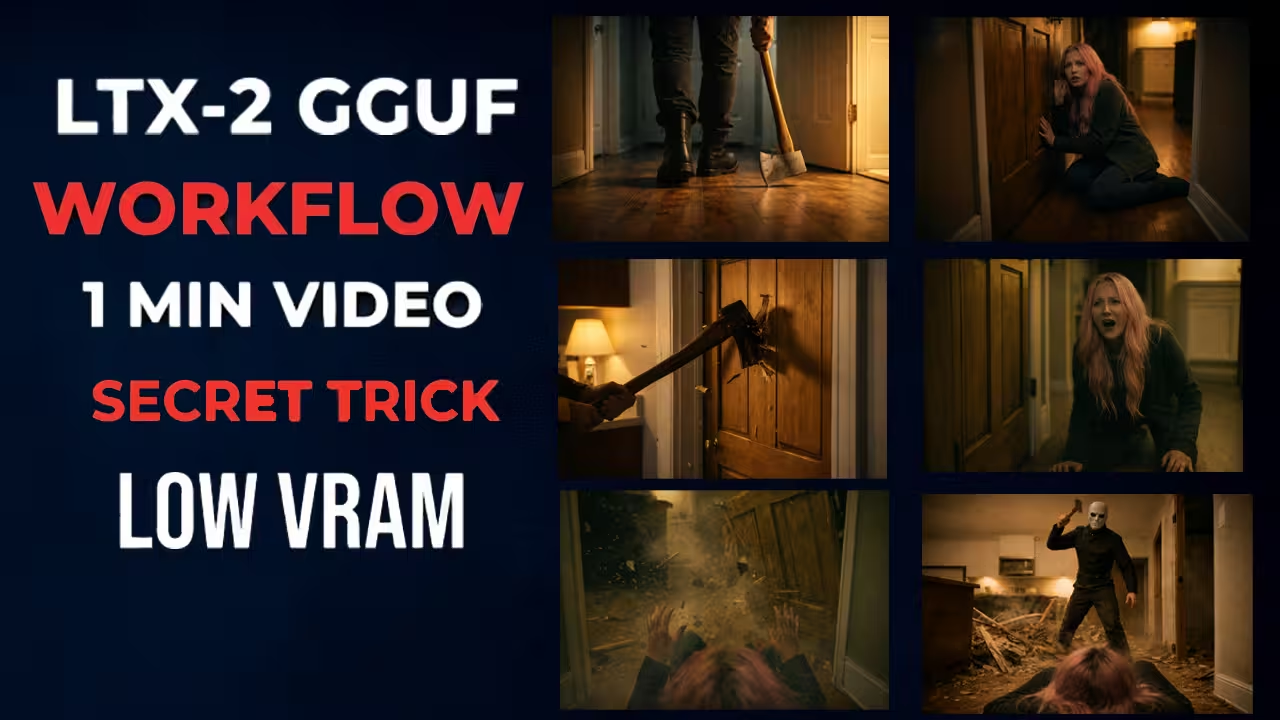
I created a scene with a killer holding an axe to test the motion.
- Without LoRA: The character walks, but the camera feels static and boring.
- With “Dolly In” LoRA: The camera moves forward from behind the character. It looks cinematic.
How to set it up:
- Load the LTX Camera LoRA.
- Select “Dolly In”.
- Set strength to 0.8.
Warning: I found that the model struggles when the camera enters a completely new room (like going through a door). It creates a “hallucination” effect. Keep your shots in one environment for the best results.
Troubleshooting: The “Enhancer” Trap
If you look at the official LTX workflow, you will see a section called “Enhance Prompt”. Delete it.
If you use the built-in Enhancer node, you will get an Out Of Memory (OOM) error because it requires an extra text encoder that eats 8GB of VRAM. The Fix: Just use ChatGPT or Gemini to rewrite your prompt manually before pasting it into ComfyUI. It saves you 8GB of VRAM.
Conclusion
This workflow changes everything for low-end cards. I was able to generate a full 60-second video with consistent details on a standard GPU just by using the Q4 GGUF model and the Tiled VAE trick.
Give it a try and let me know in the comments if you manage to break the 1-minute limit too.


Hi,
Thanks for this detailed process on running LTX-2 on running locally. I am not able to find Gamma 3.1 2B Safetensors
and LTX 2 90B Distilled BF16 for text encoders in the link you shared above. Can you please let me know where can I find these safe tensors?
gemma_3_12B_it.safetensors: https://huggingface.co/Comfy-Org/ltx-2/blob/main/split_files/text_encoders/gemma_3_12B_it.safetensors
gemma_3_12B_it_fp8_e4m3fn.safetensors: https://huggingface.co/GitMylo/LTX-2-comfy_gemma_fp8_e4m3fn/blob/main/gemma_3_12B_it_fp8_e4m3fn.safetensors
Thanks a ton!
I really appreciate your effort and valuable contribution to the open source community for comfyui guidance.Thanks again here.
I hit below error “Prompt outputs failed validation:
INTConstant:
– Failed to convert an input value to a INT value: value, euler_ancestral, invalid literal for int() with base 10: ‘euler_ancestral’
the error was pointed to the New Subgraph node.
Gemini has provided below suggestions thus I am not sure if this is the work flow issue here:
How to Fix the Error
Locate Node 76: Look for a node titled “INTConstant” that is connected to a node called “Set_sampler”. You will see the text euler_ancestral typed into its input box.
Delete the Incorrect Node: Select that INTConstant node and delete it. It is fundamentally the wrong type of node for selecting a sampler.
Add the Correct Node:
Right-click in the empty space and search for SamplerSelector.
Choose euler_ancestral from the dropdown list in the new node.
Connect the output of the SamplerSelector to the input of the “Set_sampler” node where the old one was connected.
Hello, I want to create cartoon/animation video content by using LTX-2 (image to video) for youtube. My laptop configuration is 32 GB RAM, 6GB RTX 3050 (nVIDIA) VRAM. Is it possible to use LTX-2 (image to video) based on my laptop configuration. If yes, please guide me. I find the file links provided in your channel description, but some of those is quite large for my configuration. Please help menstep by step (I am a layman in this matter).
Hi Esha. Thank you for sharing your knowledge. I am using the tiled VAE decode node. The default settings were 512, 64, 64, 16. These values do not match the settings you show in your video. I have a 24GB 3090. Do you know where I could find info regarding these settings? My searches are taking me to discussions about a tiled VAE used for image diffusion from like three years ago.
Hello. I’m not experiencing any visible errors with your workflow, but I’m getting a strange video with noise and rippled dots on a black background. I’ve changed the images and used a different workflow, and the same thing happens. What could be causing the black screen with dots? Thx
Hi. I’m new to this. Where can I find the seed? Every time I run this workflow, the output is almost identical if I use the same prompt. I was wondering if the seed isn’t radomized?
Hello there! I could have sworn I’ve been to this blog before but after reading
through some of the post I realized it’s new to me.
Anyhow, I’m definitely happy I found it and I’ll be
bookmarking and checking back frequently!
UNETLoader
Model in folder ‘diffusion_models’ with filename ‘ltx\ltx-2-19b-dev-fp8_transformer_only.safetensors’ not found.
Thanks for the detailed explanation, however still it is throwing errors which didnt encountered in your steps.