

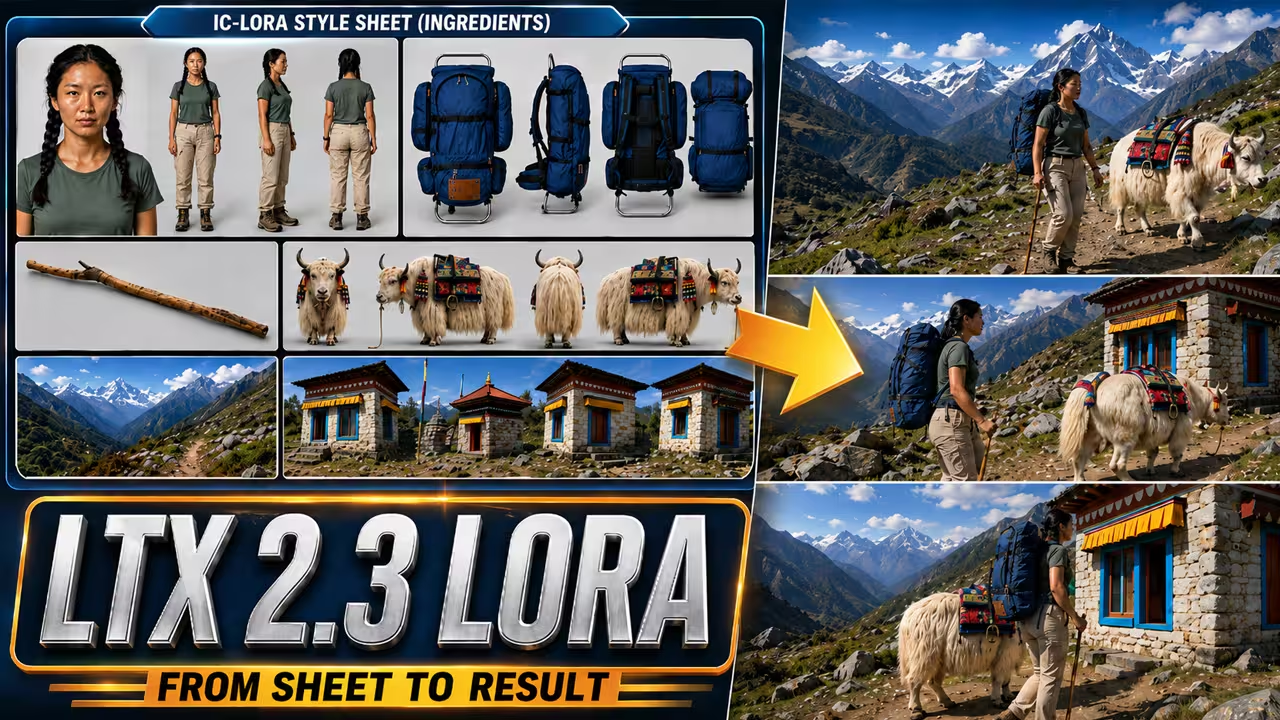
The biggest challenge in AI video is keeping your subject looking the same from shot to shot. The new LTX-2.3-22b-IC-LoRA-Ingredients model solves this by strictly following a reference image. It forces the AI to match the face, clothing, props, and background of your style sheet perfectly, significantly reducing unwanted morphing.
Before we write our prompts, we need to stack three specific LoRAs correctly in ComfyUI.
The Best ComfyUI LoRA Stack for LTX 2.3
I use the Dev FP8 base model for this workflow, connected to three separate LoRAs.
Set Distilled LoRA to 0.6 First, connect the Distilled LoRA. Do not set the strength to 1.0. If the speed LoRA is too strong, it might ignore your face reference sheet and make the character look bad. I set my strength to exactly 0.6 to protect the face details.
Set IC-LoRA-Ingredients to 1.4 Next, add the LTX-2.3-22b-IC-LoRA-Ingredients model. The officially recommended strength for this LoRA is 1.4. I tested this, and 1.4 provides the best adherence to your style sheet.
Fix Physics with VBVR Finally, I add the VBVR model. AI videos often struggle with gravity and natural movement. This LoRA helps correct the physics in your final result. I set the strength to 0.7. Connect all three of these LoRAs together before passing them to your main model.
Managing Audio and Negative Prompts
When you update ComfyUI, you will find a new node called the “LTX Add Video IC-LoRA Guide”. Connect your IC-LoRA Integrator node here.
For your text encoders, use Gemma 3 and the LTX-2 text projection model. You must also add the NAG node. Because the distilled workflow uses a CFG of 1, the AI will normally ignore your negative prompts. The NAG node forces the AI to listen to your negative instructions so your video stays clean.
If you are generating audio, I highly recommend using the MelBandRoFormer sampler node. This provides much cleaner sound, which improves the final lip-sync result.
The Secret Prompting Formula for Style Sheets
Even with the correct LoRAs, your character might wear the wrong clothes if your text prompt is formatted incorrectly. You must use specific text tags to guide the IC-LoRA-Ingredients model.
Describing Your Reference Image Start your prompt with the word reference:. You must describe every single detail visible in your style sheet. For example: “reference: A top-left panel shows a close-up portrait of a woman. A middle panel shows a full-body turnaround of the same woman wearing an olive fitted tank top.”
Writing the Generated Video Prompt Next, drop down a line and type Generated video:. This tells the AI what action to perform. Describe the exact clothes from the reference sheet again to ensure consistency. For example: “Generated video: The same woman from the reference sheet sits still on the edge of the bed, wearing an olive fitted tank top.”
How to Extend Scenes with Perfect Consistency
Once you get a great result, you can easily extend your video into a new scene. Simply leave the reference sheet and the reference: prompt exactly the same, and rewrite the Generated video: section to describe a new location or action. Because the IC-LoRA-Ingredients model locks onto the style sheet, your character will transition perfectly into the new scene without changing faces or clothes


Thank you, Esha, for everything you do for us. I wish you a wonderful life.