

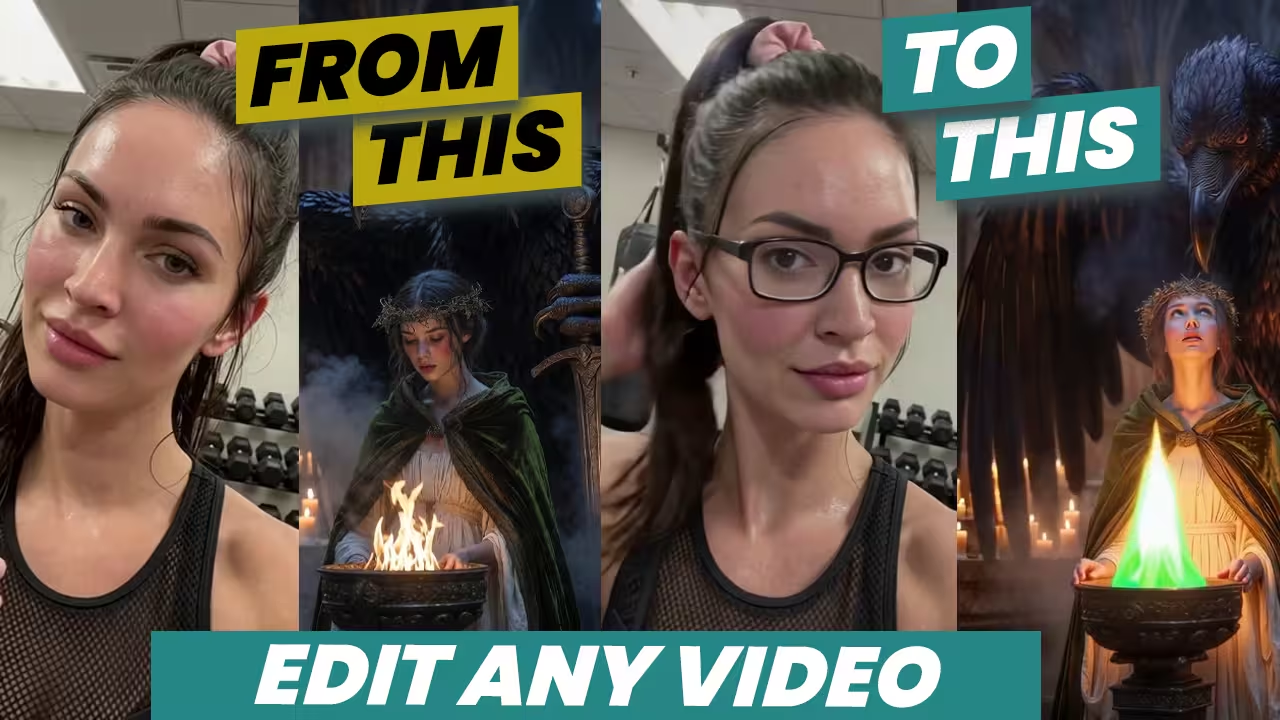
I just replaced a moving car in a video using nothing but a short text prompt. I didn’t use a single reference image.
I also swapped a woman’s dress and transformed an entire clip into an anime style. LTX 2.3 just released a massive “Edit Anything” update, and it completely eliminates the need for visual references. You can now add, remove, or convert specific objects directly inside your video without morphing the original background.
We are going to use the new 9000 AdamW LoRA to make this happen. You now have total control over your video edits, and you can run this heavy editing pipeline right now, even if you rely on a low-VRAM computer.
The Essential Files
You need the right files to make this workflow actually function. Here is the exact list of downloads, including the variants and quantizations. I scanned all of these locally, so they are completely safe to use.
- 9000 AdamW LoRA: This is the absolute latest and highest quality Edit Anything LoRA. We use this for all standard text-to-edit generations. ltx23_edit_anything_global_rank128_v1_9000steps_adamw.safetensors
- GGUF Q5 Base Model: You need this quantized base model if your graphics card lacks memory. Switch your main checkpoint to this file to prevent system crashes.
ltx-2.3-22b-dev-Q5_K_M.gguf - 7500 AdamW LoRA: This is an alternative editing file from the exact same training path as the 9000 version.
- 6000 Prodigy LoRA: The original editing LoRA built on a completely different training path.
How to Set Up LTX 2.3 Video Editing
You don’t need reference images to edit video in this update. You simply load the workflow, select the 9000 AdamW LoRA, and edit your video exactly like you edit a standard image.
You have to follow a strict formula for your text prompt. Do not write a vague idea. You mask your target object, pick one clear action verb, and give the AI concrete details. Tell the system the exact color, material, and location.
For example, I masked a black car and typed: “Replace the black car with a white sports car with black rims.” I hit run. The AI blended the new car perfectly and matched the exact camera drift while leaving the original footage completely untouched.
Your masking strategy changes entirely depending on what you want to achieve. Use this reference table to structure your action prompts correctly:
| Editing Goal | Masking Strategy | Prompt Action Verb | Example Prompt |
|---|---|---|---|
| Object Swap | Mask target object only | Replace | “Replace the fire with a glowing green flare.” |
| Object Deletion | Mask target and surrounding area | Remove | “Remove the boxing bag in the left background.” |
| Style Transfer | Bypass the mask group entirely | Convert | “Convert the entire video to an anime style.” |
Advanced Pro Tips & Workflow Hacks
I just tested the new LTX 2.3 9000 AdamW LoRA, and the results change how we handle video editing. Replacing objects is easy. Removing them completely remains the hardest task for this model. I found a specific method to force erasures to work perfectly.
Instead of typing a vague instruction like “remove the bag,” you need to use exact directional words. I type, “Remove the boxing bag in the left background behind the woman.” If you run this removal at the standard CFG setting of 1, the edit looks weak and often fails. You have to push your CFG higher to force the AI to erase the object entirely.
When you convert the visual style of your entire video, your masking strategy changes. You don’t mask the screen. You bypass the mask group completely. I typed: “Convert the entire video to a high-quality anime style with vibrant colors, clean linework, cel-shaded lighting, and expressive eyes. Keep the same motion.” The system grabs the full shot and transforms it while keeping your exact composition.
Troubleshooting Common Errors
If your computer crashes during a render, your graphics card lacks the required video memory. Many users try to run the massive standard models and overload their systems. You don’t need to build a completely new computer to fix this. Simply switch your main checkpoint to the GGUF file.
If your edits look messy or distort the original background, your text prompt breaks the rules. You have to stick to one single action per prompt. Don’t ask the AI to replace a car and change the sky at the exact same time. Keep your instructions grounded.
Here is the exact breakdown of my testing log and the files you need to run this on standard hardware.
My Testing Log & Hardware Setup
- The Core Model: Download the GGUF Q5 base model. I disconnected the main checkpoint and loaded this file to avoid VRAM limitations and prevent system crashes.
- The Editing LoRA: Select the LTX 2.3 9000 AdamW LoRA.
- The Test File: A video of a woman walking in a black dress.
- The Action Prompt: “Replace the black dress with a white dress.”
The AI swapped the outfit perfectly, maintained the natural movement, and ran flawlessly on my low-VRAM computer. Use this reference table to structure your own edits correctly:
| Editing Goal | Workflow Setup | CFG Setting |
|---|---|---|
| Object Removal | Use exact directional words (e.g., “left background”) | Increase above standard baseline |
| Full Style Transfer | Bypass the mask group completely | Standard |
| Low-VRAM Editing | Swap the main checkpoint for the GGUF Q5 model |

