

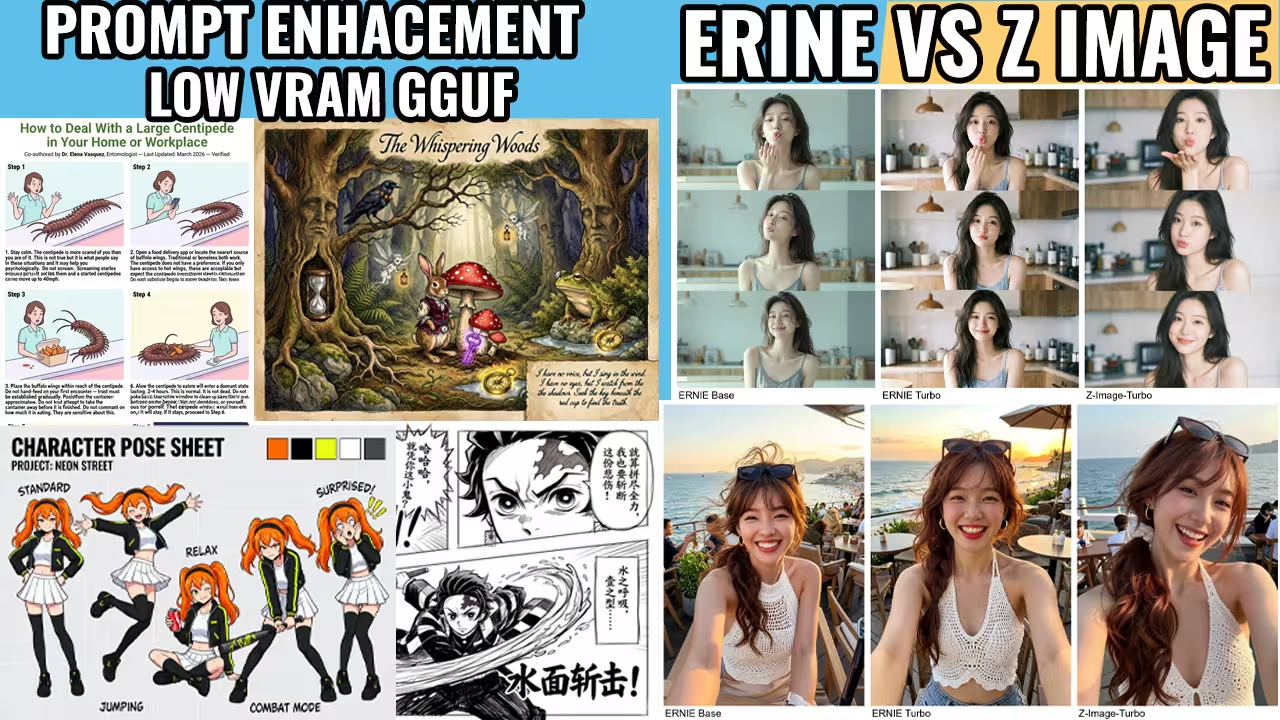
Most AI image models struggle with text. They misspell simple words, and they often make realistic human faces look like artificial plastic.
I tested ERNIE Base, ERNIE Turbo, and Z-Image-Turbo to fix these exact problems. We finally have a custom ComfyUI workflow that produces clean, accurate results.
ERNIE Turbo renders text and complex diagrams beautifully. Z-Image-Turbo handles the photographic realism. We can easily match any specific art style by pairing these base models with the Flux2 VAE and Qwen-VL.
You do not need an expensive computer to run this. I will show you exactly how to configure the Prompt Enhancer node and run this entire system on a standard graphics card using GGUF files.”
The Essential Files
You need three specific components to run this ERNIE workflow: the main diffusion models, the Ministral text encoders, and the Flux2 VAE. I scanned every single one of these files locally, so they are completely safe for you to download.
Let’s start with your main image generators. You must place these files directly into your models/diffusion_models folder. You have a choice to make here depending on your hardware requirements.
- ERNIE Base Model: Download the
ernie-image.safetensorsfile (https://huggingface.co/Comfy-Org/ERNIE-Image/resolve/main/diffusion_models/ernie-image.safetensors) if you want maximum quality and precise details. - ERNIE Turbo Model: Grab the
ernie-image-turbo.safetensorsversion (https://huggingface.co/Comfy-Org/ERNIE-Image/resolve/main/diffusion_models/ernie-image-turbo.safetensors) if you prefer pure speed. It intentionally skips generation steps to render much faster. - ERNIE Q5 GGUF: Use this quantized file to run heavy comic prompts if your graphics card suffers from low VRAM. unsloth/ERNIE-Image-Turbo-GGUF at main
Now you need the text encoders. These files act as the brain that actually reads your written prompts. Drop them straight into your models/text_encoders folder.
- Ministral Text Encoder: Download
ministral-3-3b.safetensors(https://huggingface.co/Comfy-Org/ERNIE-Image/resolve/main/text_encoders/ministral-3-3b.safetensors) to serve as your primary language processor. - Prompt Enhancer: Download
ernie-image-prompt-enhancer.safetensors(https://huggingface.co/Comfy-Org/ERNIE-Image/resolve/main/text_encoders/ernie-image-prompt-enhancer.safetensors). We use this tool specifically to rewrite your text and force the AI to generate better layouts.
You only need one last file to finish the setup. Put this component inside your models/vae folder.
Flux2 VAE: Download flux2-vae.safetensors (https://huggingface.co/Comfy-Org/ERNIE-Image/resolve/main/vae/flux2-vae.safetensors). This piece translates all the complex math into the visible pixels you see on your screen.
How to Set Up ERNIE Image Models
Let’s set up the core foundations for this workflow. I always use the flux2-vae.safetensors file to decode the final images properly.
You cannot just guess your image dimensions. If you pick random aspect ratios, ERNIE gets confused. It will start duplicating body parts and blurring your fine textures. To avoid this, I always lock my generations to these exact native resolutions:
- Square (1:1): 1024×1024 or 1328×1328
- Widescreen (16:9): 1664×928 or 1376×768
- Portrait (9:16): 928×1664 or 768×1376
- Standard (4:3): 1472×1104 or 1200×896
Once your size is locked, we need to configure the samplers. Your settings will change completely depending on which ERNIE model you decide to run. Both models use the Euler sampler and the Simple scheduler, but the step counts and CFG scales require completely different numbers.
The Base model needs plenty of time to render. I give it 50 steps so it can build up the fine details. I set my CFG Scale to 4.0 because that specific number balances accurate prompt reading with natural color saturation.
The Turbo version is built for pure speed. You should stop at exactly eight steps. If you add more steps, you just waste your time without improving the picture. You also have to drop the CFG down to 1.0. If you try to raise the CFG on the Turbo model, the colors instantly burn and over-saturate.
Here is a quick reference table I use to remember the exact settings for each model:
| Model Choice | Steps | CFG Scale | Sampler & Scheduler | Best Use Case |
|---|---|---|---|---|
| ERNIE-Image (Base) | 50 | 4.0 | Euler / Simple | Maximum quality and exact details. |
| ERNIE-Image-Turbo | 8 | 1.0 | Euler / Simple | Comic pages, gaming UI, and pure speed. |
| ERNIE Q5 GGUF | 8 to 50 | 1.0 to 4.0 | Euler / Simple | Low-VRAM graphics card setups. |
Advanced Pro Tips & Workflow Hacks
Your Prompt Enhancer node behaves completely differently depending on your generation goal. I discovered exactly when you need it, and more importantly, when you need to turn it off.
Here is a quick reference guide for your enhancer settings:
| Generation Goal | Prompt Enhancer Status | The Result |
|---|---|---|
| Posters & Diagrams | ON | The AI understands the structure and creates perfect flow diagrams. |
| Realistic Photos | OFF | The AI generates authentic photos. If you leave the enhancer on, ERNIE Base creates subjects with artificial, plastic-looking skin. |
I also found a highly effective method for style transfers. Uploading an image alone is never enough for strict style matching. The uploaded image simply acts as a visual guide, meaning the AI will not force your final generation to match the picture perfectly.
We can fix this easily. You need to use Qwen-VL to bridge the gap.
- Step 1: Upload your reference picture into Qwen-VL.
- Step 2: Let the model analyze the image and write a highly detailed text description of it.
- Step 3: Feed that precise text description back into your main system alongside your reference image.
This specific setup gives us incredible control. You keep the original picture connected as a visual baseline, and the precise text forces the AI to understand exactly what you want. We get the absolute best results for copying any art style using this method.
Troubleshooting Common Errors
I just created a new LTX 2.3 workflow that allows you to edit any video. I included two specific examples in the project files: swapping a car and changing a dress. My YouTube audience voted heavily for an inpainting tutorial, but that process requires a long, detailed breakdown. I will cover the complete inpainting workflow in my next upload. Leave a comment below if you want to see it.
While you wait for that video, we need to fix the major text generation errors destroying your current images.
If your generated image repeats words or adds random letters, your prompt structure is the problem. Most users type basic paragraphs to request layouts, text labels, and typography all at the same time. The AI immediately fails and hallucinates unknown text. You must structure your prompt exactly like a strict design brief. Break your instructions down into clear, sequential steps.
If your colors burn and over-saturate, you made a different mistake. You left the CFG scale too high while running the Turbo model. You must lower that number.
I ran a massive benchmarking test comparing ERNIE Base, ERNIE Turbo, and Z-Image-Turbo using a coffee infographic. Here is exactly how to configure your system for the best results based on my testing log.
Hardware and Sampler Settings
- The Sampler Switch: If the default Euler sampler gives you a messy text result, immediately switch to the
res2sampler. This alternative render path cleans up the letters significantly. - RTX Video Super Resolution: Turn this feature on. It takes a good base image and makes the tiny, illegible details sharp and visible.
- Low-VRAM Optimization: You can run heavy comic prompts using the Q5 GGUF file. I tested this on a low-VRAM graphics card, and the text and perspective still rendered flawlessly.
Model Performance Breakdown Z-Image-Turbo won the initial raw text test easily. However, everything changed when I rewrote my prompt into a strict design brief and turned on the Prompt Enhancer.
| Model | Best Use Case | Performance Notes |
|---|---|---|
| Z-Image-Turbo | Raw text prompts | Performed the best on the initial text test without enhancements. |
| ERNIE Base | Flow diagrams | Generated a perfect diagram with correct arrows when paired with a strict design brief and the Prompt Enhancer. |
| ERNIE Turbo | Heavy text (Comics) | Rendered words perfectly on a full comic page. It maintained flawless text and perspective even on low-VRAM hardware. |

