

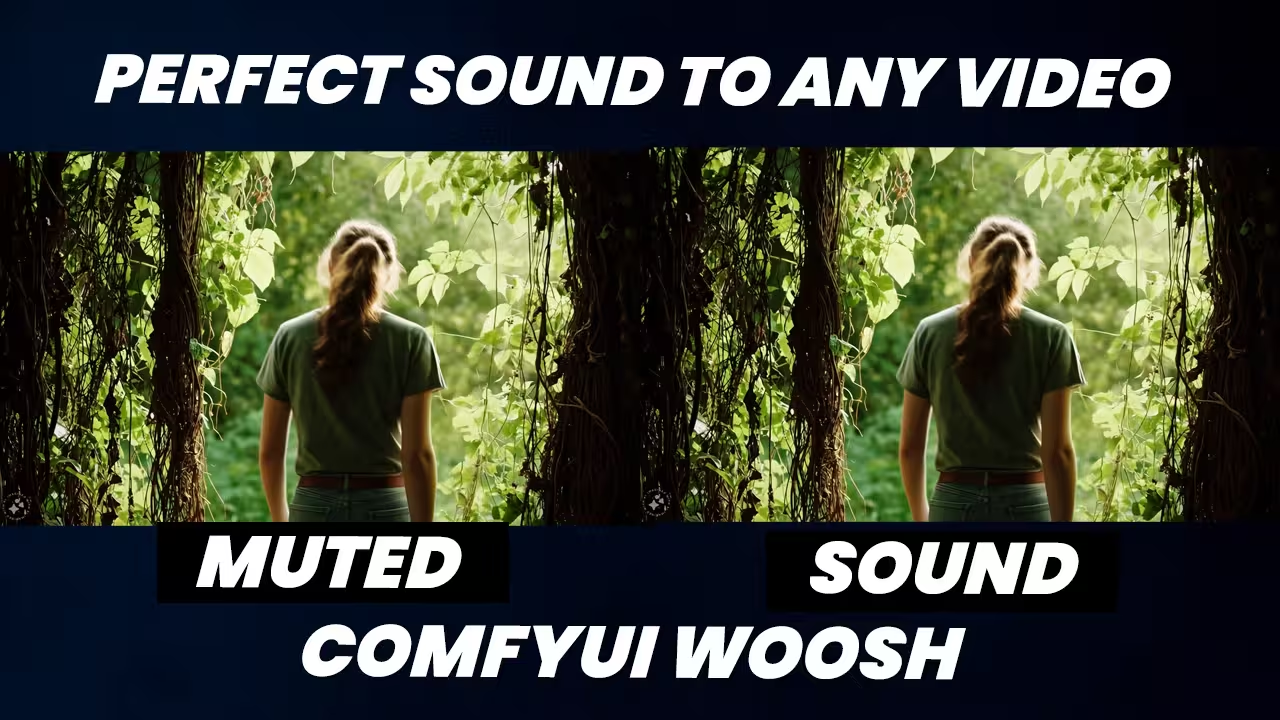
Sony just released a brand new open-source foundation model called Woosh. They designed it specifically to generate high-quality sound effects. Thanks to a master developer, we can now run it directly inside a ComfyUI custom node. This tool gives you perfectly synced Foley, physical impacts, and ambient atmospheres in seconds.
You just have to set it up carefully. If you configure this incorrectly, the software will crash your system. I’ll show you exactly how to install it safely so you get perfect audio on your first try.
The Crash-Free Setup
First, we need to handle the model files. They total about nine gigabytes. Use these specific steps to configure your directory correctly:
- Download the complete set of model files.
- Create a new folder named ‘Woosh’ or ‘Hoo’ directly inside your ComfyUI models directory.
- Drop your downloaded files straight into that exact folder.
People make a critical mistake right here. You must install the required dependencies through your command prompt before you even open ComfyUI. If you skip this step, you’ll trigger import errors that crash your setup and force a complete system restart. Open your CMD, or your portable environment command prompt, and run the install command for the required audio packages.
The Language Rule
Once you load the node, you face one strict limitation. The Woosh model only understands English text prompts. If you type your sound instructions in another language, you’ll get weak or inaccurate results.
Use this reference table to fix the language barrier instantly:
| Prompt Language | Workflow Setup | Expected Result |
|---|---|---|
| English | Type your instructions directly into the text prompt box. | High-quality, synced sound effects. |
| Non-English | Attach a translation node and plug it directly into your text prompt box. | The AI receives the exact English instructions it requires. |
The “Scout & Render” VRAM Strategy
Standard Woosh models require 50 sampling steps and demand 8 to 12 gigabytes of video memory. If your graphics card lacks this capacity, your system will crash. You don’t need an expensive computer to fix this. I use a specific method called the “Scout and Render” strategy.
Sony released distilled versions of their main models. You need to understand the difference between these two file types to manage your hardware:
- The Standard Models (Flow and VFlow): These provide the highest quality audio, but they require 50 sampling steps and 8 to 12 GB of VRAM.
- The Distilled Models (DFlow and DVFlow): These lightweight models generate audio in seconds. They require a CFG setting of exactly 1.0, only 4 sampling steps, and run smoothly on just 4 to 6 GB of VRAM.
Here’s exactly how we apply this strategy in our workflow. You load the lightweight DFlow or DVFlow model first to test your text prompts. This allows you to scout for the perfect sound effect rapidly without overloading your computer. Once you find the exact sound you want, you switch your node back to the heavy Flow or VFlow model to generate your final, high-quality render.
You have to follow one strict rule when you swap these files. Your TextConditioning node must always match the exact model family you select. If you connect the wrong node, the audio generation fails completely.
Use this reference table to configure your settings correctly:
| Model Family Used | Required TextConditioning Node |
|---|---|
| Flow or DFlow | T2A |
| VFlow or DVFlow | V2A |
Mastering Woosh: Timing, Limits, and the Prompt Formula
We need to establish strict boundaries before you write your first prompt. Woosh is a dedicated sound effect engine. It generates Foley, physical impacts, and background atmospheres perfectly. Don’t ask this model to generate music. If you request a piano solo or a hip-hop beat, you will confuse the AI and break your generation entirely.
You also have to control your timing manually. ComfyUI-Woosh dictates audio duration using frames instead of seconds. I use a simple calculation: 100 frames equal exactly one second of audio. If you have a five-second video clip, you set your duration to exactly 500 frames.
You must also respect the strict generation limit. The developers built the Video-to-Audio (V2A) models as eight-second variants. If you feed the node a 20-second scene all at once, the system fails. We fix this by splitting longer scenes into smaller chunks. You generate the audio for each individual piece, and then you combine them together in your video editor.
Your text prompt requires a very specific structure. Forget generic words like “car” or “water.” We use a strict three-part sound design formula to get cinematic, perfectly synced audio: Action + Material + Acoustic Context.
When you describe the exact physical action and texture, the AI knows precisely what to target. It syncs the sound to the visual impact seamlessly. Use this reference table to structure your specific prompts:
| Generic Target | The Three-Part Formula Prompt |
|---|---|
| Water | “Heavy splash of water and a loud thud as a person hits the surface.” |
| Car | “Car engine accelerates loudly, followed by tires screeching from intense braking.” |
| Walking | “Rustling of vines and leaves, accompanied by soft footsteps on the forest floor.” |
Fixing the Bugs
We need to address the exact errors crashing setups across the community right now. People are hitting walls because they ignore the hidden limits of this tool. I want to save you hours of troubleshooting.
Here are the specific limitations and bugs you will encounter, along with the exact fixes you need to apply:
- The Mono Audio Limit: Woosh generates excellent sound, but the model is strictly monaural. The output is mono, not stereo. Don’t waste your time trying to force the node to generate spatial audio. The developers didn’t build the software to do that.
- The Garbled Audio Bug: Your generated audio might suddenly sound like broken, robotic static. This happens when ComfyUI corrupts the global PyTorch state. The fix takes exactly one click. Open your node settings and turn on ‘Subprocess Inference’. This forces the audio generation into a clean background environment. The static disappears instantly.
- The ‘sample_euler’ Crash: You might see a sudden crash with an error stating
NameError: name 'sample_euler' is not defined. Don’t panic. Don’t delete your workspace. This is a known bug in the sampler code. Just check your ComfyUI manager for an update, because the developers are patching this specific issue right now.
Download My Workflow.
Good sound design completely transforms an AI video. But you don’t need to struggle with broken dependencies and sampler crashes. I did the hard work for you.
Click the link below to download my pre-built ComfyUI-Woosh workflow. It’s completely stable, bypasses these common bugs, and helps you generate perfectly synced cinematic audio in seconds.

