


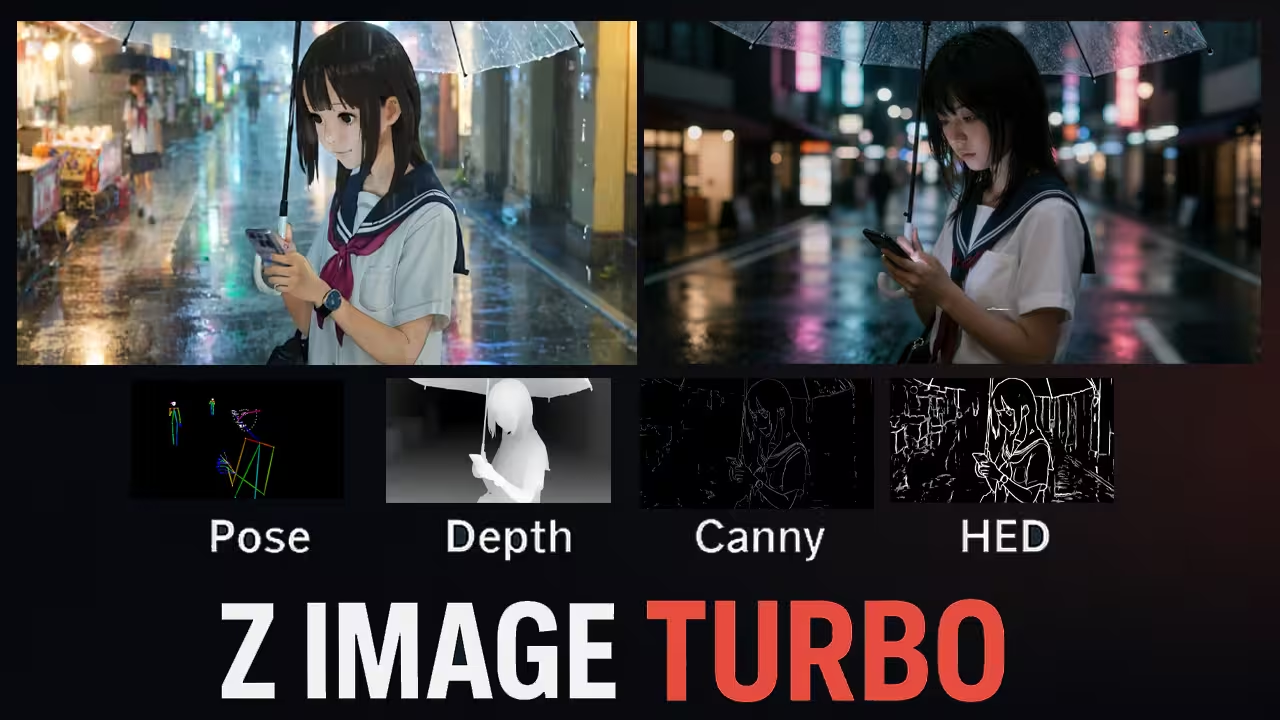
If you already enjoy working with Z Image Turbo inside ComfyUI, this new update is honestly one of the most fun upgrades you can add.
With just one extra ControlNet Union file, you can control Z Image Turbo with
- pose
- depth
- canny edges
- HED
inside a single simple workflow. You drop in one image, ComfyUI writes a prompt for you, and then you decide if you want to keep the pose and layout or let the model change things.
In this post I will walk you through everything I do on my side so you can follow the same steps on your own setup:
- files you have to download
- where to place them in your ComfyUI folders
- how to load the models in the new Fun ControlNet Union workflow
- how the control part actually works
- real examples for pose, depth, canny and HED
- how the strength slider changes the result
Along the way I will also talk a bit about VRAM, GGUF, and how this fits with Google style helpful content and E E A T guidelines for long form tutorials in 2025.

What Z Image Turbo Fun ControlNet Union Actually Is
Z Image Turbo by itself is a fast distilled diffusion model. It gives you high quality images in very few steps and is tuned to run on normal consumer GPUs. Comfy Anonymous+2Hugging Face+2
The new Z Image Turbo Fun ControlNet Union model is a multi ControlNet file that supports:
- pose
- depth
- canny
- HED
inside a single patch. You do not need to download four separate ControlNet models. One file covers all of them. Facebook+2AIBase+2
In ComfyUI this is done with a model patch. You load the normal Z Image Turbo model, then you load the Fun ControlNet Union file as a patch, and the workflow sends a control image into it.
The rest of the system is built on top of the official Z Image workflow that the Comfy team already shared. docs.comfy.org+1
So if you already used my basic Z Image Turbo workflow before, this will feel very familiar. We are just adding one clean ControlNet branch in the middle.
File You Need To Download
Before you touch the workflow, you have to make sure all the model files are in the right place inside your ComfyUI folder.
For this Z Image Turbo Fun ControlNet Union ComfyUI setup, you need four main files, and I will also give you the direct Hugging Face links so you do not have to search around.
1. Z Image Turbo main model (FP8 build)
This is your main diffusion model that does the actual image generation.
You can download the FP8 version from this page:
Z Image Turbo FP8 model
https://huggingface.co/T5B/Z-Image-Turbo-FP8/tree/main
From there you can grab something like:
z_image_turbo_fp8.safetensors
Later you will place this file in:
ComfyUI/models/diffusion_models/
2. Z Image Turbo Fun ControlNet Union patch
This is the special multi control patch that gives you pose, depth, canny and HED in one file.
You can download it from this page:
Z Image Turbo Fun ControlNet Union (Alibaba PAI)
https://huggingface.co/alibaba-pai/Z-Image-Turbo-Fun-Controlnet-Union/tree/main
Look for the file named similar to:
Z-Image-Turbo-Fun-Controlnet-Union.safetensors
This file goes into:
ComfyUI/models/model_patches/
3. Qwen text encoder for Z Image Turbo
Z Image Turbo uses a Qwen 3.4B text encoder. The official Comfy Org repo already has it in the split files.
You can grab it from here:
Qwen 3.4B text encoder
https://huggingface.co/Comfy-Org/z_image_turbo/blob/main/split_files/text_encoders/qwen_3_4b.safetensors
Download qwen_3_4b.safetensors and put it in:
ComfyUI/models/text_encoders/
If you also use FP8 or other variants, you can keep them in the same folder. In the workflow you will just point the CLIPLoader (or text encoder loader) to the one you want.
4. Flux VAE for Z Image Turbo
For VAE, Z Image Turbo uses the Flux style VAE. You will find it in the official Comfy Org Z Image Turbo repo.
Use this link:
Z Image Turbo VAE folder
https://huggingface.co/Comfy-Org/z_image_turbo/tree/main/split_files/vae
Inside that folder, download the file named:
ae.safetensors
Place it here:
ComfyUI/models/vae/
Folder layout recap
After you download everything, your ComfyUI folders should look roughly like this:
ComfyUI/
  models/
    diffusion_models/
      z_image_turbo_fp8.safetensors

    text_encoders/
      qwen_3_4b.safetensors

    vae/
      ae.safetensors

    model_patches/
      Z-Image-Turbo-Fun-Controlnet-Union.safetensors
Once these files are in the correct folders, you are ready to load the Z Image Turbo Fun ControlNet Union workflow and start playing with pose, depth, canny and HED in one clean setup.
Workflow Download

Hello I liked your explanations on the youtube it is very clear and understandable thanks for it.
I dont have a personal GUP as of now , if you dont mind can you recommend some configuration please