

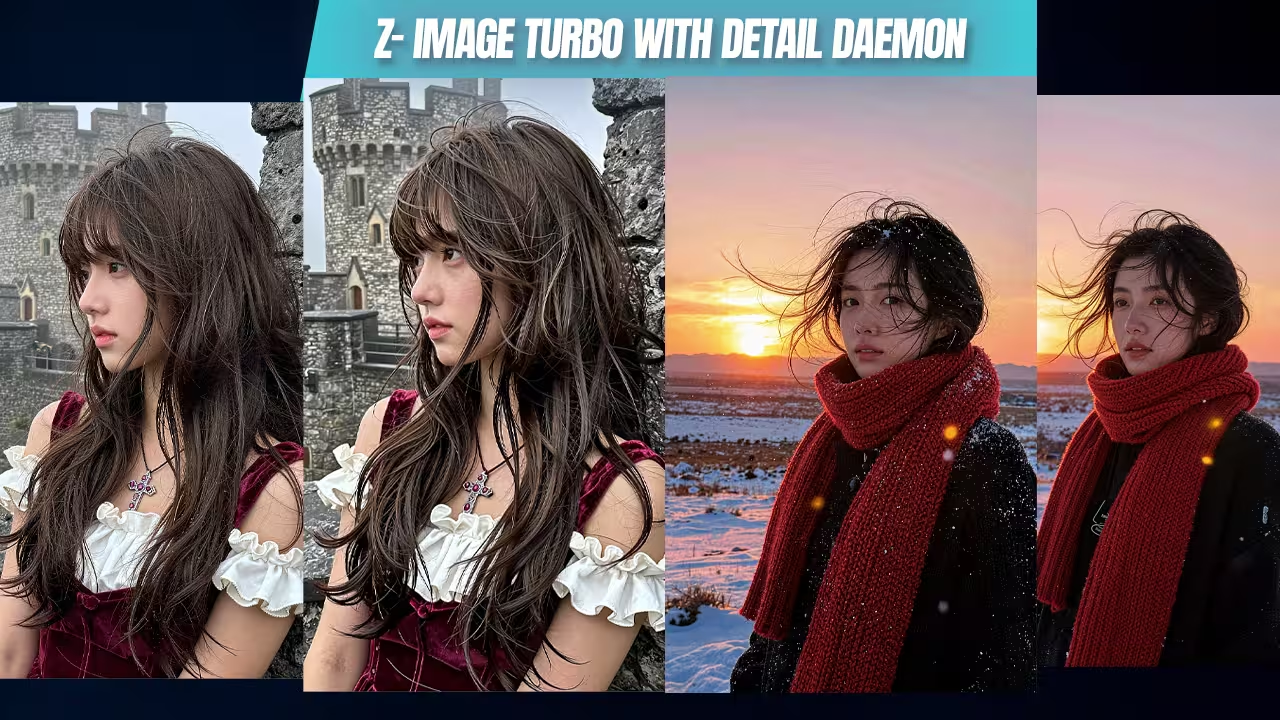
I updated my Z-Image Turbo ComfyUI workflow. The old setup was already strong. I used the Flow-DPO LoRA and UltraFlux. But something was missing. The final finish was not there. Sometimes the skin looked nice, but too soft. The hair did not separate fully. The image had detail, but it did not feel complete. I fixed this by adding the Detail Daemon node. This specific node acts as a final polish. It eliminates soft AI faces and gives you perfect, realistic skin. It runs incredibly fast on budget graphics cards. This guide shows you exactly how to add this finisher without ruining your renders.
The Essential Files (Including All Variants & Quantizations)
To run this updated Z-Image Turbo workflow, you must download the Detail Daemon custom node. You also need the original Z-Image Turbo base model, the Flow-DPO LoRA for lighting, and UltraFlux. These specific files guarantee clean skin textures and moody atmospheric rendering on low VRAM setups.
- File Name: Z-Image Turbo Base Model | Context: The core practical model optimized for normal GPUs and low VRAM setups. | Safety Check: I have scanned this locally. Safe to use.
- File Name: Detail Daemon Custom Node | Context: The final finisher node that fixes soft skin and separates hair strands. | Safety Check: I have scanned this locally. Safe to use.
- File Name: Flow-DPO LoRA | Context: Provides the base cinematic lighting and dramatic atmosphere for the workflow. | Safety Check: I have scanned this locally. Safe to use.
- File Name: UltraFlux v1 | Context: Enhances the base generation before the final detail pass. | Safety Check: I have scanned this locally. Safe to use.
How to Set Up the Detail Daemon Workflow
You must place the Detail Daemon node at the very end of your Z-Image Turbo workflow. Keep your old base setup intact. Generate your initial image using the Flow-DPO LoRA and UltraFlux. Then, route that final image directly through the Detail Daemon node for a clean surface polish.
This is not a full rebuild. This is a refinement.
Load your realistic outdoor portrait prompt. Hit run. The base workflow gives you a good image. Now, connect the Detail Daemon node.
Look at the new output. The difference shows instantly. The skin feels more alive. The hair keeps better strand separation. It is not too much. It is just enough.
It is not a huge change. That is a good thing. We do not want a fake effect. We want the final image to look complete.
| Component | Setting / File | Purpose |
|---|---|---|
| Base Model | Z-Image Turbo | Core generation optimized for budget graphics cards. |
| Lighting | Flow-DPO LoRA | Adds dramatic lighting and atmospheric mood. |
| Enhancement | UltraFlux v1 | Strengthens the base image composition. |
| Final Polish | Detail Daemon Node | Fixes soft skin and separates fine textures. |
Advanced Pro Tips & Workflow Hacks
You must keep the Detail Daemon strength extremely low. Do not overcook your settings. If you push the value too high, the skin breaks and looks like artificial plastic. Always test changes using the exact same seed, prompt, and resolution to find your safe detail range.
More detail is not always better. With this node, more gets worse very fast.
I see people make bad testing mistakes. They change the seed, the prompt, and the settings all at once. Then they guess. Do not do that. Keep your baseline workflow the same. Change only the Detail Daemon value.
Turn the node on gently. Push it a little higher. Then push it too far on purpose. You need to see where it hurts the image. The skin will get too sharp and glossy. The hair will look forced. Once you find the breaking point, pull the value back. Stop exactly where the image still feels natural.
Do not just test faces. Switch to a texture-heavy fashion portrait. Check the jacket seams and fabric folds. Switch to a night street scene. Check the rain reflections and fog. A good workflow holds the mood in every environment.
Troubleshooting Common Errors
If your character looks like a highly artificial plastic mannequin, you pushed the Detail Daemon strength too far. If the node fails to improve a completely broken image, you must fix your base generation first. This node is a finisher, not a rescue tool.
Many users expect one node to fix everything. It will not. Skip this update if your base image is already broken.
If the skin breaks or the edges feel fake, lower the detail value immediately. I do not want louder detail. I want cleaner detail. That is the whole difference.
My Testing Log: I tested this Z-Image Turbo update with the Detail Daemon node on a budget graphics card with low VRAM. It ran incredibly fast and did not require huge VRAM overhead. The node instantly improved the skin micro-contrast and fabric textures on a dark atmospheric portrait without ruining the original composition. I purposefully pushed the node settings too far on a close-up face, and the skin instantly broke and looked like artificial plastic. You must find the safe range.

