


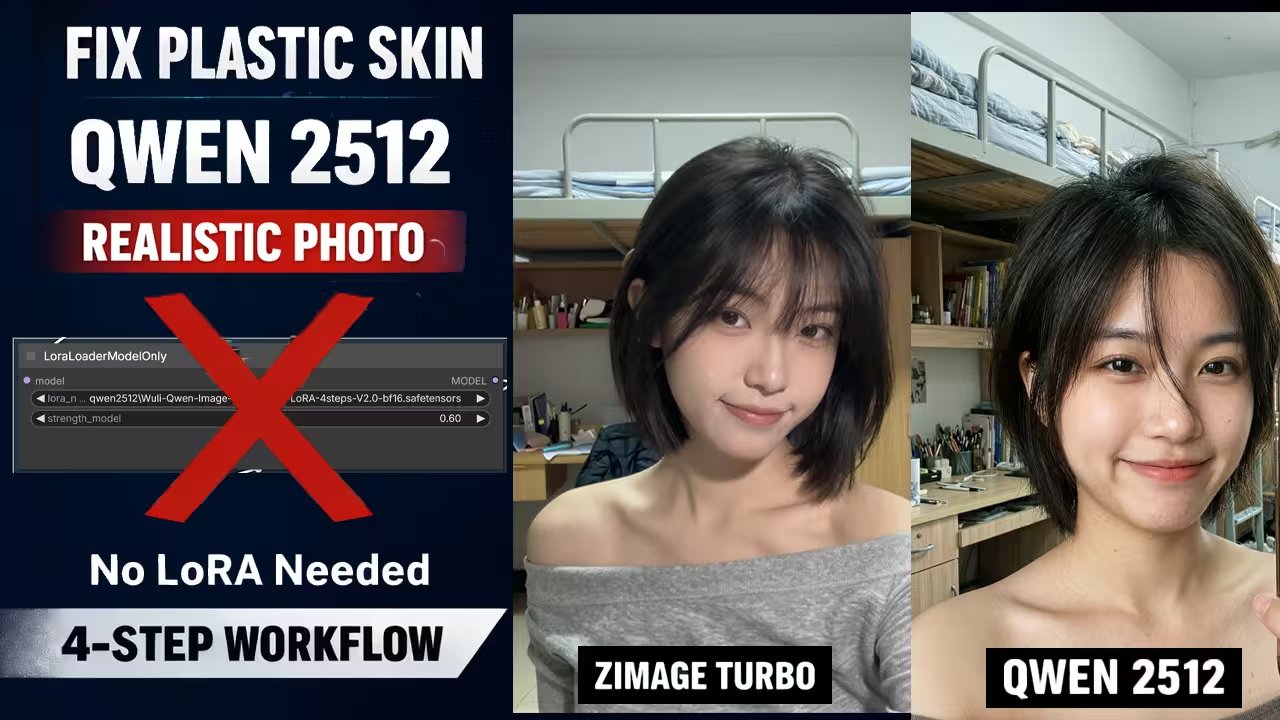
Look at this image I generated. I did it in just 4 steps using Qwen 2512. You can see how realistic it looks. In fact, this result looks better than Z Image, and it even beats the official Qwen 2512 examples.
Usually, when people use the Qwen model, they complain that the skin looks plastic or fake. It looks like a doll instead of a real human. But with my new settings, I managed to fix that completely. In this guide, I will show you exactly how I fix the plastic skin problem and get photorealistic results using Qwen in ComfyUI.
Files You Need To Download
Before we start, I need to tell you exactly which files I use so you can get the same results. You need to download these four specific files:
- LightX2V 20GB Scaled Model: I do not use the standard FP8 model you see online because it has a red tint problem. Instead, I use this specific scaled model. It has the Lightning settings baked inside, so it runs fast without needing extra setup. LightX2V 20GB Scaled Model: I do not use the standard FP8 model you see online because it has a red tint problem. Instead, I use this specific scaled model. It has the Lightning settings baked inside, so it runs fast without needing extra setup. https://huggingface.co/lightx2v/Qwen-Image-2512-Lightning/resolve/main/qwen_image_2512_fp8_e4m3fn_scaled_comfyui_4steps_v1.0.safetensors
BF16 (42GB): Comfy-Org/Qwen-Image_ComfyUI (BF16)
FP8 (Standard): Comfy-Org/Qwen-Image_ComfyUI (FP8)
- Qwen Edit Skin LoRA: You have to download this file and save it in your LoRAs folder. This is the first key ingredient for fixing the skin texture. tlennon-ie/qwen-edit-skin at main
- Qwen Majic Beauty LoRA: This is the second LoRA you need. I save this in the same folder. These two files work together to inject realistic details back into the face. Lingyuzhou/Qwen_majic_beauty at main
- RES4LYF Node Pack: You need this for the specific sampler I use. You can find it in your ComfyUI Manager. I just search for it, install it, and restart ComfyUI.
The Problem with Standard Models
When I started testing, I found that standard FP8 model available online. I tried using it, but I noticed a its a big problem immediately. When you will generate images with it, they often have a heavy red or orange tint.
This happens because the colors are compressed incorrectly in that standard version. It ruins the realism. To fix this, I decided to use the LightX2V 20GB Scaled Model I mentioned earlier.
This specific model is different because it fixes that red and orange color problem completely. It gives you natural, neutral colors right away. Also, this model has the Lightning speed settings baked inside it. Because of this, I can skip the extra speed LoRAs. This model handles the 4 step generation natively without making the image look bad.
Why You Should Avoid Turbo LoRA
There is a Turbo LoRA 4 step V2 available online that many people use. But when I tested with that Turbo LoRA, I got a plastic result every single time. The skin looked smooth and fake.
So I do not recommend using that LoRA if you want realism. Instead, I use the two specific LoRAs I told you to download earlier.
I hook up the Qwen Edit Skin and Qwen Majic Beauty in the workflow. These two LoRAs inject texture back into the face so it looks human again.
The Secret Sampler Setting
For the Text Encoder and VAE, I use the same files we used in previous Qwen workflows. But here is the secret that changes everything.
For the Scheduler, I am using Bong_Tangent.
This scheduler is not in the default list. That is why I told you to install the RES4LYF node pack. After I installed it and restarted, I found Bong_Tangent in the list.
I will tell you when to use this and when not to use it. It does not always give the best result for everything. But for realistic portraits, you have to use it. Bong_Tangent is excellent at keeping high frequency details like pores and film grain. Other schedulers tend to smooth these details out, which is why your images look plastic. Bong_Tangent forces the texture to stay visible.
Improving the Prompt for Realism
Now let me explain the settings I use. The Negative Prompt plays a very important role here.
If you type photorealistic in the prompt, the model often tries too hard and gives you plastic skin. Also, if you put ugly or bad skin in the negative prompt, it removes the texture. So I don’t do that.
In my negative prompt, I simply tell the AI what not to do. I type smooth skin and digital art in the negative box. This forces the model to avoid that plastic look.
In the Positive Prompt, I add a specific line to force texture. I write “(film grain:1.2), (high iso:1.1), visible pores, raw analog photo”. Since I am usually using the Euler sampler, which naturally smooths images, adding this noise in the prompt creates the illusion of real texture on the skin.
Comparing 4 Different Methods
I wanted to prove that my settings are actually better, so I ran a test comparing four different ways to generate this image.
Test 1 was with Turbo LoRA. First, I used the standard Turbo LoRA with the official base model. I set it to SGM Uniform and the same resolution. The result was not good. The skin looked completely plastic. It looked like a doll, not a human.
Test 2 was the Base Model without LoRA. Next, I disabled the Turbo LoRA completely. I used just the base model, but I had to increase the steps to 20 and the CFG to 4. The result was better than the Turbo LoRA. The plastic look was gone, and it looked more natural. But the problem is speed. It takes much longer to generate, and nobody wants to wait that long.
Test 3 was the Massive BF16 Model. Then, I tried the full BF16 model. This is the huge 42GB file. Honestly, the result looks very similar to the FP8 model. It does not give a huge jump in quality, and it is very heavy to run. And if you try to speed it up with the Turbo LoRA, you get that same plastic skin problem again.
Test 4 was My Optimized Workflow. Finally, look at the result from my workflow. I use the Scaled FP8 model with my specific Skin LoRAs and the Euler sampler. This one looks the best. The skin texture is sharp. The hair looks real. It looks even better than the official BF16 result, and we generated it in just 4 steps. This proves you don’t need the massive model to get realistic human photos.
One Sampler vs Two Samplers
Now, let me show you that the advanced part of my workflow. I also wanted to see if you are using Two Samplers makes a big difference compared to just one.
When I use just one sampler that the image is generated in 4 steps at the standard resolution. It looks good but The face is clear, and the lighting is nice. If you have low VRAM, this is the best option because it is so fast and easy on your GPU.
But if you have a good GPU, you should use Two Sampler method. Here is how it works. First, the model generates the base image in 4 steps. Then, I scale it up by 1.5 times. After upscaling, I send it to a Second Sampler. This second sampler doesn’t just make it bigger. It looks at the image again and fills in more tiny details that were missing before.
When I look at these two images side by side, the difference is clear. In the first image, the details are good. But in the second image, the skin texture is much deeper. The eyes are sharper. It looks slightly more natural because the second pass refined those small imperfections.
Fixing the Blurry Text Issue
There is one downside to this workflow that you need to know. If you generate text using Bong_Tangent, the text will look blurry. The scheduler tries to add texture to the letters, which ruins them.
So, how do you fix that? It is simple. If you are generating text or comic book pages, change the scheduler to SGM_Uniform. As soon as you switch to SGM_Uniform, the text render problem is fixed, and the letters become clearly visible.
Tips for Low VRAM Users
If you have very low VRAM, you can also switch to the GGUF Q4 model. I don’t suggest using Lightning LoRAs with GGUF because they don’t work well together. Instead, just bypass the LoRAs and use the base settings. It will take a little bit of time to generate, but the result is outstanding.
Using Auto Prompt for Better Results
Finally, I use a Vision model to auto write the prompt for me. In the workflow, you can load an image, and the AI will write a killer prompt based on that image.
It writes a prompt that Qwen supports perfectly. You don’t need to struggle with writing prompts manually. Just load a reference image, let it write the prompt, and hit generate.
When I looked at the result generated with the auto prompt, I noticed something interesting. The skin texture looks realistic, and the lighting is perfect. But I also looked at the Sony logo on the camera in the image. In my previous manual tests, this text was blurry or hard to read. But here, with the auto prompt, the text is clearly visible and sharp. This shows that the vision model understands details that we might miss when writing prompts ourselves.
This is how you can use Qwen 2.5.1.2 to generate photorealistic images without the plastic look. You can use the Auto Prompt to save time, and you can use the Scaled Model to fix the colors. I hope this helps you get better results with your generations.
