


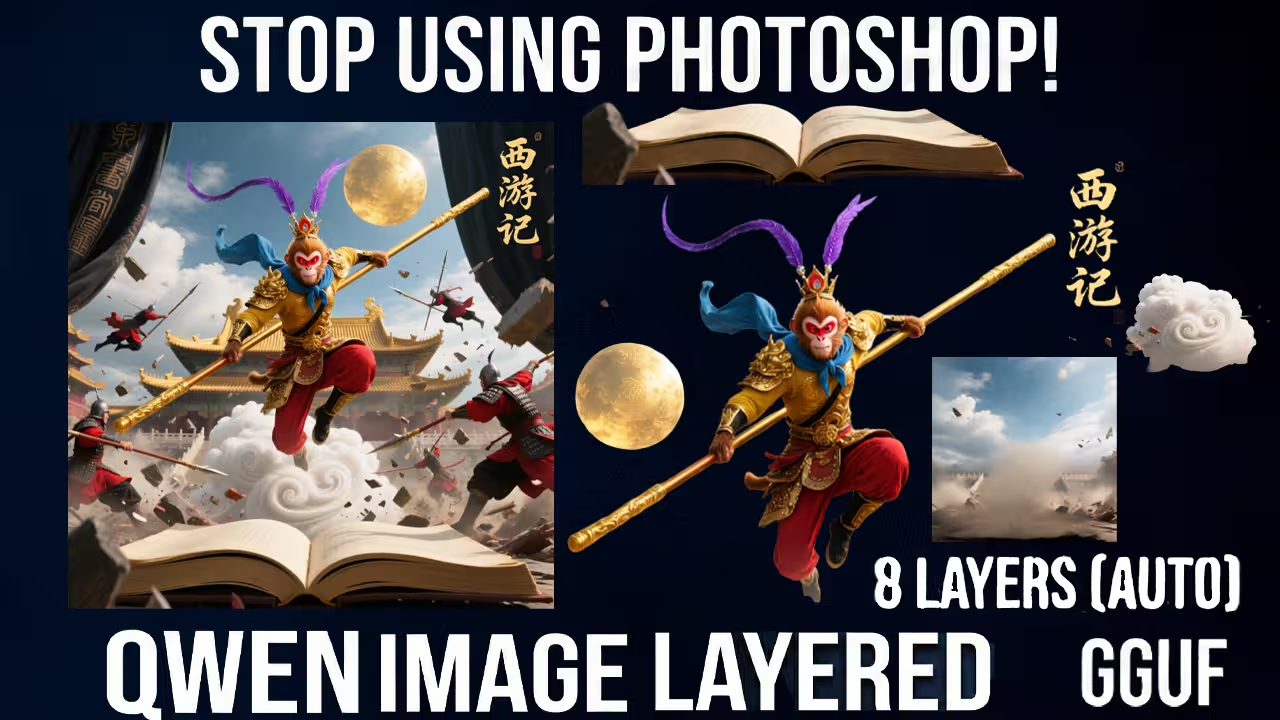
I am using the Qwen Image Layered model in ComfyUI and it changes everything. It does not just remove the background. It splits this complex image into 8 perfect transparent layers automatically.
Files You Need To Download
Before we open the workflow you have to download three specific files. Do not skip this part. If you use standard Qwen files this will not work because they do not understand transparency.
1. Diffusion Model (Pick One)
You have three choices depending on your GPU.
- Option A (Best for High VRAM): The FP8 Mixed file. It is about 20 Gigabytes. It works perfectly if you have 16 to 24 Gigabytes of VRAM.
- Download: qwen_image_layered_fp8mixed.safetensors
- Option B (Best for Low VRAM): The GGUF version. Get the Q4 KM file. It is only 13 Gigabytes and runs very smooth.
- Download: qwen-image-layered-Q4_K_M.gguf
- Option C (Massive GPU): The full BF16 file. It is 40 Gigabytes.
- Download: qwen_image_layered_bf16.safetensors
2. VAE (Critical)
This is critical. You must download the Qwen Image Layered VAE. Do not use the standard Qwen VAE. This special VAE has 4 channels designed to handle the alpha background. If you use the wrong one your background will just be black.
- Download: qwen_image_layered_vae.safetensors
3. Text Encoder
You need the standard Qwen 2.5 VL text encoder.
- Download: qwen_2.5_vl_7b_fp8_scaled.safetensors
Warning: Do not use LoRAs. This is a standalone model. If you try to load character or style LoRAs they will break the transparency layers and ruin the separation.

Workflow
Now let’s look at the workflow.
First look at the Model Loader group section. I added here a switch so you can choose models between gguf and Safetensors .
I am using the Qwen Image Layered model in ComfyUI and it changes everything. It does not just remove the background. It splits this complex image into 8 perfect transparent layers automatically.
Files You Need To Download
Before we open the workflow you have to download three specific files. Do not skip this part. If you use standard Qwen files this will not work because they do not understand transparency.
1. Diffusion Model (Pick One)
You have three choices depending on your GPU.
- Option A (Best for High VRAM): The FP8 Mixed file. It is about 20 Gigabytes. It works perfectly if you have 16 to 24 Gigabytes of VRAM.
- Download: qwen_image_layered_fp8mixed.safetensors
- Option B (Best for Low VRAM): The GGUF version. Get the Q4 KM file. It is only 13 Gigabytes and runs very smooth.
- Download: qwen-image-layered-Q4_K_M.gguf
- Option C (Massive GPU): The full BF16 file. It is 40 Gigabytes.
- Download: qwen_image_layered_bf16.safetensors
2. VAE (Critical)
This is critical. You must download the Qwen Image Layered VAE. Do not use the standard Qwen VAE. This special VAE has 4 channels designed to handle the alpha background. If you use the wrong one your background will just be black.
- Download: qwen_image_layered_vae.safetensors
3. Text Encoder
You need the standard Qwen 2.5 VL text encoder.
- Download: qwen_2.5_vl_7b_fp8_scaled.safetensors
Warning: Do not use LoRAs. This is a standalone model. If you try to load character or style LoRAs they will break the transparency layers and ruin the separation.
Workflow
Now let’s look at the workflow.
First look at the Model Loader group section. I added here a switch so you can choose models between gguf and Safetensors .
The Prompt Section
Now let’s talk about the Prompt section. This is where I save a lot of time. I created a switch here so you can choose how you want to work.
Option 1 is Qwen VL. This is the auto mode. The AI looks at your image and it writes the description for you. It sees the image and sends that info to the model. You do not have to type a single word.
Option 2 is Manual. If you want to do it manually just flip the switch. It is actually very simple. I found that you do not need to give complex instructions like remove background or split layers.
The killer prompt is just a clear description of the image. That is it.
If you have an image of a cat on a table just write A cat sitting on a wooden table. The model already knows what to d
The Secret Resolution Rule
Now let’s look at the Resolution. You might wonder what resolution should I use. The model works best at two specific sizes. 640 and 1024.
For most cases I use 640. It is faster and stable. If you need high quality set it to 1024. Do not go higher than that directly or it will be very slow. I added an Image Resize node right here to handle this.
But there is one secret rule you must follow.
- If you use 640 resolution you must set the Shift to 1.
- If you use 1024 resolution set the Shift to 3.
If you mix these up like using Shift 3 on a small image it will look blurry. So remember Low res uses Shift 1 and High res uses Shift 3.
How to Set Layer Counts
Now I will explain the Layer Settings. This part usually confuses people but I made it simple. You see the Empty Hunyuan Latent node. The Length number here decides how many layers you get.
But it is not a direct number. You cannot just type 5 for 5 layers. You have to use a simple math formula. I wrote it down in this Note node for you. It is Layers times 4 plus 1.
So if you want 2 layers just the person and the background you type 9. If you want 3 layers you type 13. Just look at the list I put in the note and type the number you need.
Example 1: Simple 2 Layer Split
Let’s try an example. I want to split this banner into 2 layers. So I do the math. 2 times 4 is 8. Plus 1 is 9. I type 9 in the box. I run it with 20 steps and CFG 2.5.
Here is the result. Image 0 is the reference. Image 1 is the background. The cartoon black dots and text are gone and the AI painted the wall behind them. It is clean. Image 2 is the main cartoon with dots and text. The cut out is perfect.
Example 2: Deep 5 Layer Split
Now let’s go deeper. I want 5 layers. So I do the math. 5 times 4 is 20. Plus 1 is 21. I type 21.
Here I use a different image. It is a Halloween banner with a little witch and floating ghosts and bats. I run it again. Look at this result. It separates the little witch with pigtails but it also separates the Halloween Text and the Spider and the background with the ghost.
Example 3: Extreme 8 Layer Detail
But if you want to separate the ghost too just increase the layer to 8. For that we use value 33. We go extreme.
Now we get the perfect background. The Happy text is split. The bats are separate. The spider and the ghost are now in their own layer. The little witch girl is separate. And in the last layer we have the Halloween text. It cuts them perfectly. If you are doing motion graphics or 2.5D animation this gives you control over every tiny element.
Low VRAM Option
Now let’s talk about low VRAM users. How can they run this?
Switch to the GGUF option. Select the Q4 model. Make sure you change the resolution in Resize Image to 640 by 640. I am using the same Halloween banner.
Let’s test this. If you compare it with FP8 it does not give as good a result but it is still usable. The background is not split perfectly but the witch girl and the ghost and the text are properly split. So even with Q4 you get the output.
This model splits the hardest images in layers which was impossible before. That is all for today. If you like this check out more guides on my site.
The Secret Resolution Rule
Now let’s look at the Resolution. You might wonder what resolution should I use. The model works best at two specific sizes. 640 and 1024.
For most cases I use 640. It is faster and stable. If you need high quality set it to 1024. Do not go higher than that directly or it will be very slow. I added an Image Resize node right here to handle this.
But there is one secret rule you must follow.
- If you use 640 resolution you must set the Shift to 1.
- If you use 1024 resolution set the Shift to 3.
If you mix these up like using Shift 3 on a small image it will look blurry. So remember Low res uses Shift 1 and High res uses Shift 3.
How to Set Layer Counts
Now I will explain the Layer Settings. This part usually confuses people but I made it simple. You see the Empty Hunyuan Latent node. The Length number here decides how many layers you get.
But it is not a direct number. You cannot just type 5 for 5 layers. You have to use a simple math formula. I wrote it down in this Note node for you. It is Layers times 4 plus 1.
So if you want 2 layers just the person and the background you type 9. If you want 3 layers you type 13. Just look at the list I put in the note and type the number you need.
Example 1: Simple 2 Layer Split
Let’s try an example. I want to split this banner into 2 layers. So I do the math. 2 times 4 is 8. Plus 1 is 9. I type 9 in the box. I run it with 20 steps and CFG 2.5.
Here is the result. Image 0 is the reference. Image 1 is the background. The cartoon black dots and text are gone and the AI painted the wall behind them. It is clean. Image 2 is the main cartoon with dots and text. The cut out is perfect.
Example 2: Deep 5 Layer Split
Now let’s go deeper. I want 5 layers. So I do the math. 5 times 4 is 20. Plus 1 is 21. I type 21.
Here I use a different image. It is a Halloween banner with a little witch and floating ghosts and bats. I run it again. Look at this result. It separates the little witch with pigtails but it also separates the Halloween Text and the Spider and the background with the ghost.
Example 3: Extreme 8 Layer Detail
But if you want to separate the ghost too just increase the layer to 8. For that we use value 33. We go extreme.
Now we get the perfect background. The Happy text is split. The bats are separate. The spider and the ghost are now in their own layer. The little witch girl is separate. And in the last layer we have the Halloween text. It cuts them perfectly. If you are doing motion graphics or 2.5D animation this gives you control over every tiny element.
Low VRAM Option
Now let’s talk about low VRAM users. How can they run this?
Switch to the GGUF option. Select the Q4 model. Make sure you change the resolution in Resize Image to 640 by 640. I am using the same Halloween banner.
Let’s test this. If you compare it with FP8 it does not give as good a result but it is still usable. The background is not split perfectly but the witch girl and the ghost and the text are properly split. So even with Q4 you get the output.
This model splits the hardest images in layers which was impossible before. That is all for today. If you like this check out more guides on my site.
