

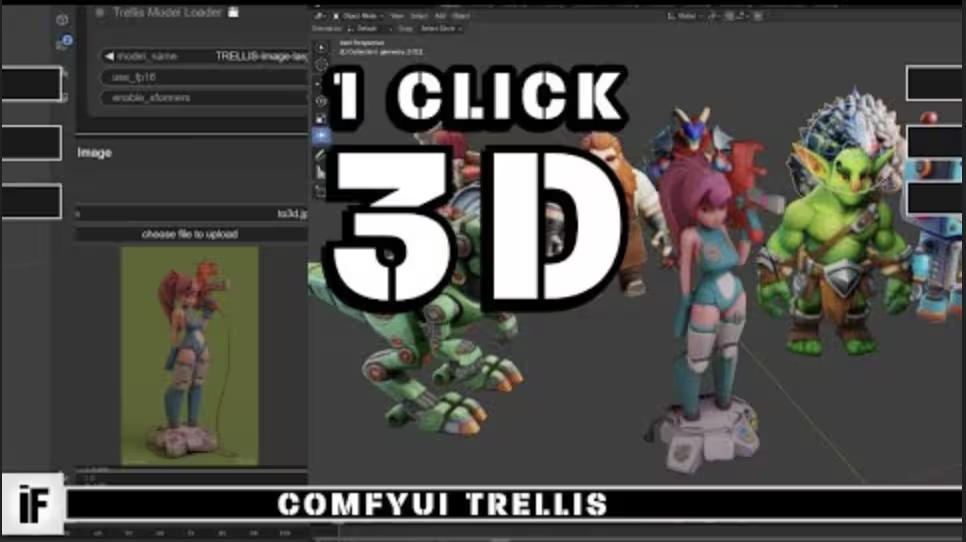
In this guide, I’ll walk you through setting up Micromamba to integrate Triton, Sage-Attention, Flash-Attention, and X-formers for ComfyUI 3D. This combination ensures smooth performance for advanced workflows, especially for 3D models and optimizations.
ComfyUI
git clone https://github.com/comfyanonymous/ComfyUI.gitHere’s a step-by-step guide to setting up Micromamba on Windows.
A. Download and Configure Micromamba Directory
Open PowerShell as Administrator
Not your regular PowerShell—make sure it’s Administrator-level access.
Create a Directory for Micromamba
Choose where you want Micromamba to live. Examples:
mkdir micromamba cd micromambaDownload the Latest Micromamba Windows Binary
Use this command to grab the latest version:
Invoke-WebRequest -URI https://micro.mamba.pm/api/micromamba/win-64/latest -OutFile micromamba.tar.bz2Extract Micromamba
Use 7-zip or your preferred unzip tool to extract:
7z e micromamba.tar.bz2 && 7z x micromamba.tar && MOVE -Force Librarybinmicromamba.exe micromamba.exeScript Details & Cleanup
Once extracted, you can safely delete the leftover files:
Library folder
.tar and .tar.bz2 files
Close PowerShell when you’re done.
C. Configure Environment Variables
Create the MAMBA_ROOT_PREFIX Environment Variable
Open Control Panel -> Edit System Environment Variables -> Environment Variables
Add the Micromamba Directory to Your PATH
Point to the folder where Micromamba lives (e.g.,
C:UsersusernameAppDataRoamingmambaD. Verify Your Setup
Open a new PowerShell session and check that Micromamba is installed properly:
micromamba -vIf it spits out a version number, you’re good to go!
Why Micromamba? Micromamba is lightweight, fast, and great for automating Python environment setups—especially when sharing with team members. Less headache, more coding.
Step 1: Set Up PowerShell Permissions
Open an Administrator PowerShell window.
Type this command:
Set-ExecutionPolicy Unrestricted
press AClose the PowerShell window.
Troubleshooting Terminal Issues: (Optional)
If you’re using a “debloated” version of Windows and PowerShell isn’t cooperating, install WezTerm as an alternative terminal:
Download WezTerm here: WezTerm Install
Or use this command via Winget:
winget install wez.weztermStep 2: Python Setup To avoid issues later, create a micromamba environment. If you’re not familiar with micromamba, here’s how:
Install Micromamba:
Download it here: Micromamba Installation
Open your terminal and run:
micromamba install xtensor -c conda-forge micromamba create -n 3d12 xtensor -c conda-forgeReplace 3d12 with any name you like (short and sweet, like ai or comfy).
Install Python 3.12.1:
micromamba install -c conda-forge python=3.12.1 micromamba activate 3d12Later, when installing ComfyUI dependencies, use:
pip install -r requirements.txtIn PowerShell while Activate Error
If you Get This Error
critical libmamba Shell not initialized
‘micromamba’ is running as a subprocess and can’t modify the parent shell. Thus you must initialize your shell before using activate and deactivate.
To initialize the current powershell shell, run:
$ micromamba.exe shell hook -s powershell | Out-String | Invoke-Expression and then activate or deactivate with: $ micromamba activate
To automatically initialize all future (powershell) shells, run:
$ micromamba shell init –shell powershell –root-prefix=~/.local/share/mamba
If your shell was already initialized, reinitialize your shell with:
$ micromamba shell reinit –shell powershell Otherwise, this may be an issue. In the meantime you can run commands. See: $ micromamba run –help
Supported shells are {bash, zsh, csh, posix, xonsh, cmd.exe, powershell, fish, nu}.
Try This CMD
micromamba.exe shell hook -s powershell | Out-String | Invoke-ExpressionStep 3: Install Git and Git LFS
Download and install Git:
Git Download
Install Git LFS:
Git LFS Install
Make sure Git is on your system PATH. Run this to check
micromamba.exe shell hook -s powershell | Out-String | Invoke-ExpressionStep 4: Install CUDA Toolkit
Download the CUDA Toolkit 12.4:
CUDA 12.4 Download
Remove any older CUDA versions from your PATH to avoid conflicts.
Restart your computer after installation.
Important: Double-check that CUDA is correctly set up by ensuring its folder path exists in your system environment variables.
Step 5: Install Xformers
Xformers speeds up image generation. Install it before other dependencies:
Run this command to install Xformers with PyTorch:
pip install -U xformers torch torchvision torchaudio –index-url https://download.pytorch.org/whl/cu124Replace cu124if you’re using a different CUDA version.
Need more info? Check out the official guides:
Xformers Guide
PyTorch Install
Step 6: Install Visual Studio Build Tools
Download Visual Studio Build Tools here:
VS Build Tools
During installation, select:
Desktop Development with C++
Windows 11 SDK (10.0.22621.0 or newer)
MSVC v143 – VS 2022 (x64/x86)
C++ CMake Tools
C++ ATL headers and libraries
Step 7: System Environment Variables
Time to fix those environment paths:
Open Windows Settings.
Search for “Edit system environment variables”.
Click on Environment Variables.
Add or edit these variables:
CUDA Path
Python PATH (add venv/Scripts folder).
Git Path
C:Program FilesGitcmdVisual Studio Tools Path (important for Triton):
C:Program Files (x86)Microsoft Visual Studio2022BuildToolsVCAuxiliaryBuildStep 8: Install VCRuntime DLLs
If you’re missing vcruntime files, here’s how to fix it:
Download the runtime installer:
VC Redist x64
Copy vcruntime140.dll and vcruntime140_1.dll into the Scripts folder of your Python environment.
https://www.mediafire.com/file/rtr9twx3qpx96dc/vcruntime140_1.dll/file
https://www.mediafire.com/file/gfjvkquaxn7o91u/vcruntime140.dll/file
Step 9: Install Triton (Precompiled Wheels)
Download the correct Triton wheel for your Python version:
Triton Wheels
Place the wheel file in your working directory (or provide its path):pip install triton-3.0.0-cp312-cp312-win_amd64.whl For embedded Python:.
/python.exe -s -m pip install triton-3.0.0-cp312-cp312-win_amd64.whlStep 10: Install SageAttention
Download the SageAttention script:
Place the script in this folder:
ComfyUI/custom_nodes/
pip install sageattentionStep 11: (Optional) Install Flash Attention 2 Flash Attention 2 can help with performance optimization.
Check if you have Ninja installed:
ninja –versionIf not, install it:
pip install ninjaClone the Flash Attention repo:
git clone https://github.com/Dao-AILab/flash-attention cd flash-attention set MAX_JOBS=4 pip install flash-attn –no-build-isolationRun pip list to confirm it installed successfully.
Final Words
Phew! You’re all set now. Activate your ComfyUI environment and start creating:
micromamba activate 3d12 # Or your environment nameIf you run into any snags, just double-checked the system paths and installed versions. Now go enjoy some super-smooth, high-speed image generation!

