


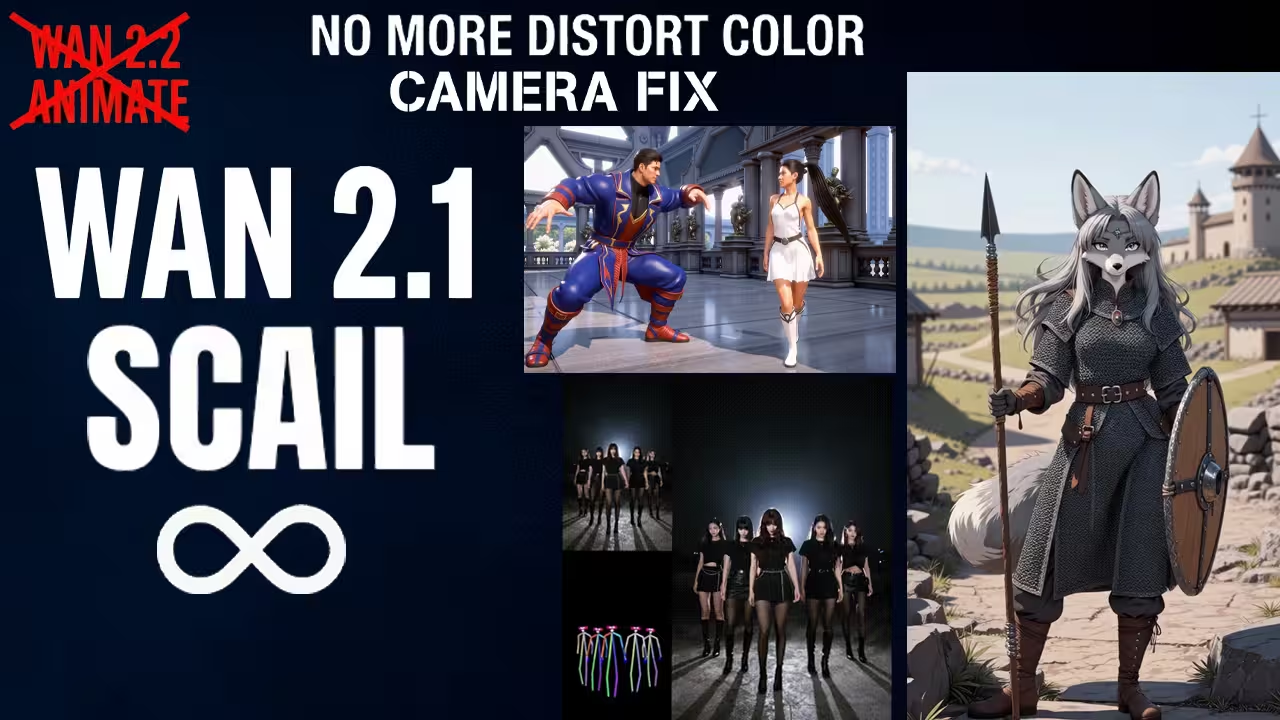
I have been testing the Wan 2.1 SCAIL workflow for the last few days and honestly it can be really frustrating.
You can set everything up perfectly you press queue and the result is just a static shot. The camera does not move at all even if your prompt asks for dynamic movement or worst you will try to generate a longe video and it crashes your PC memory instantly.
I found out the standard workflows just don’t work well for this specific task. You have to change a few very specific settings to get that smooth cinematic movement and keep it running fast without errors.
In this guide I am going to show you exactly how I fix the tripod camera problem using the Uni3C Controlnet and how I generate 30 seconds of animation without crashing and the correct math setup you need so your character doesn’t turn into a giant distorted mess.
The Files You Need Before You Start
Before we open ComfyUI and start connecting nodes we have to talk about the files. This is where most people mess up because there are so many versions available online right now.
You see confusing names like BF16 and FP8 and GGUF all over the place and it gets confusing. Let me break down exactly what files I am using in this workflow and why I chose them so you don’t download the wrong thing and choke your system.
1. The Main Wan 2.1 Model
First We will Talk about the main model. You will usually see a version called BF16 available for download.
That is the full uncompressed version of the model. It is massive around 28 gb in size. Unless you have a high end gpu do not download that one. It will just crashes your sytem
I am using the FP8 version for my workflow. Think of FP8 like a compress file. It is much smaller only about 14 gigabytes but the quality is basically the same as the big one for video generation. You can also see GGUF versions online which are great for low end cpu because they are very compressed. But for this workflow i m using the FP8 because it is faster.
2. The LightX 2 Video LoRA
Second is the LoRA file. I am using the LightX 2 Video LoRA.
This file is basically the speed switch for the whole process. Without it you have to wait for 30 steps for every single frame. With it you only need about 6 steps to get a good result. I use the BF16 version here because LoRAs are small files anyway so we don’t need to compress them further. We want the full quality here so the motion stays smooth and consistent.
3. The Text Encoder
Third is the Text Encoder which is the brain that reads and understands your prompt. I am using the UMT5-XXL BF16 file.
A lot of guides tell you to use the FP8 version to save disk space. I disagree with that advice based on my testing. I found that the compressed text encoders sometimes ignore complex instructions like when we tell the camera to pan left or zoom out. The BF16 version is smarter and understands your prompt much better. So even though it is a bigger file use the BF16 Text Encoder to make sure the AI actually listens to what you want it to do.
4. The Uni3C Controlnet
Fourth is the Controlnet file. This is the most important file for fixing the static camera issue which we will discuss below. This file reads the camera movement data from your reference video. Do not skip this file or the camera fix in this workflow will not work at all.
Setting Up the Workflow for Movement
Now let’s look at the workflow setup. We start right at the top with prompts.
Instead of writing prompts by hand and hoping for the best I set up Qwen VL to look at your reference image and write the prompt for you automatically. I use a specific system prompt that forces the AI to describe the motion it sees and explicitly tell Wan 2.1 to move the camera.
But prompts alone are often not enough with Wan 2.1. If you really want professional camera movement that matches your source video you have to force it mathematically.
That is why I added the WanVideo Uni3C Controlnet Loader to this workflow. You load that Uni3C file we talked about into this node. Then you connect your reference video to it. It extracts the exact camera path like the pan the tilt and the zoom and it forces the new video to follow that same path. It basically overrides the model’s natural desire to be static.
How to Generate 30 Second Videos Without Crashing
Next let’s fix the video length issue. You want a 30 second video but the model usually only gives you about 5 seconds before it stops.
You have to look for the WanVideo Context Options node in the middle of the workflow. I have set the Context Length to 81.
Do not lower this to 41 like some older guides suggest. I tried 41 frames and it glitches on the first frame because the model gets confused about the timing embeddings. Stick to 81 which is what the model was natively trained on.
Then I set the Context Overlap to 16. This gives the model enough room to blend the different chunks of video together so you don’t see any awkward seams. Finally set the Fuse Method to Pyramid. This keeps the center of your video action sharp while smoothly blending the edges between frames.
Fixing the Giant Skeleton Glitch
If you scroll down to the Pose group in the workflow you will see some math nodes. This is where people get the infamous Giant Skeleton glitch.
SCAIL was trained on half resolution skeletons. So if you send it a full size skeleton directly from your video it scales it up by 200 percent during generation and your character looks huge and distorted.
I added two SimpleMath+ nodes here to fix this. They take your video width and height and divide them by 2 using the formula a/2. This shrinks the skeleton data before it hits the main model. So when Wan 2.1 scales it back up it fits your video perfectly.
Getting Smooth 30fps Video Fast
Finally let’s talk about speed and frame rate. I set the workflow to generate at 16 fps.
Do not change this setting in the main model. Wan 2.1 looks terrible if you try to force it to generate 30 fps natively. It looks like a fast forwarded cartoon.
Instead look at the end of the workflow. I added a RIFE VFI node there. I set the Multiplier to 2. This takes your 16 frames generated by the model and doubles them to 32 frames per second using interpolation. It fills in the gaps smoothly. So you only render 81 frames with the heavy model but you get a smooth result that looks like 30 fps. It cuts your render time in half.
A Final Note on TeaCache
I am using the LightX 14B model for this run because it is fast. But be careful if you decide to tweak things.
If you use the LightX or any Turbo workflow with low steps do not connect TeaCache. I left the cache_args node disconnected in this workflow for a reason. TeaCache removes too much detail when you are only doing 6 steps making the video look blurry. So just leave it unplugged for this specific setup.
File You Need To Download
wangkanai/wan21-lightx2v-i2v-14b-480p at main
https://huggingface.co/Kijai/WanVideo_comfy_fp8_scaled/tree/main/SCAIL
https://huggingface.co/Kijai/WanVideo_comfy/tree/main/SCAIL
vantagewithai/SCAIL-Preview-GGUF at main
Wan21_Uni3C_controlnet_fp16.safetensors · Kijai/WanVideo_comfy at main
umt5-xxl-enc-bf16.safetensors · Kijai/WanVideo_comfy at main
Here is the list of the specific files used in this workflow that you need to have ready:
- Main Model: Wan21-14B-SCAIL-preview_fp8_e4m3fn_scaled_KJ.safetensors
- LoRA: wan21-lightx2v-i2v-14b-480p-cfg-step-distill-rank256-bf16.safetensors
- Text Encoder: UMT5-XXL BF16
- Controlnet: Wan21_Uni3C_controlnet_fp16.safetensors
- VAE: wan_2.1_vae.safetensors
Workflow Download
