

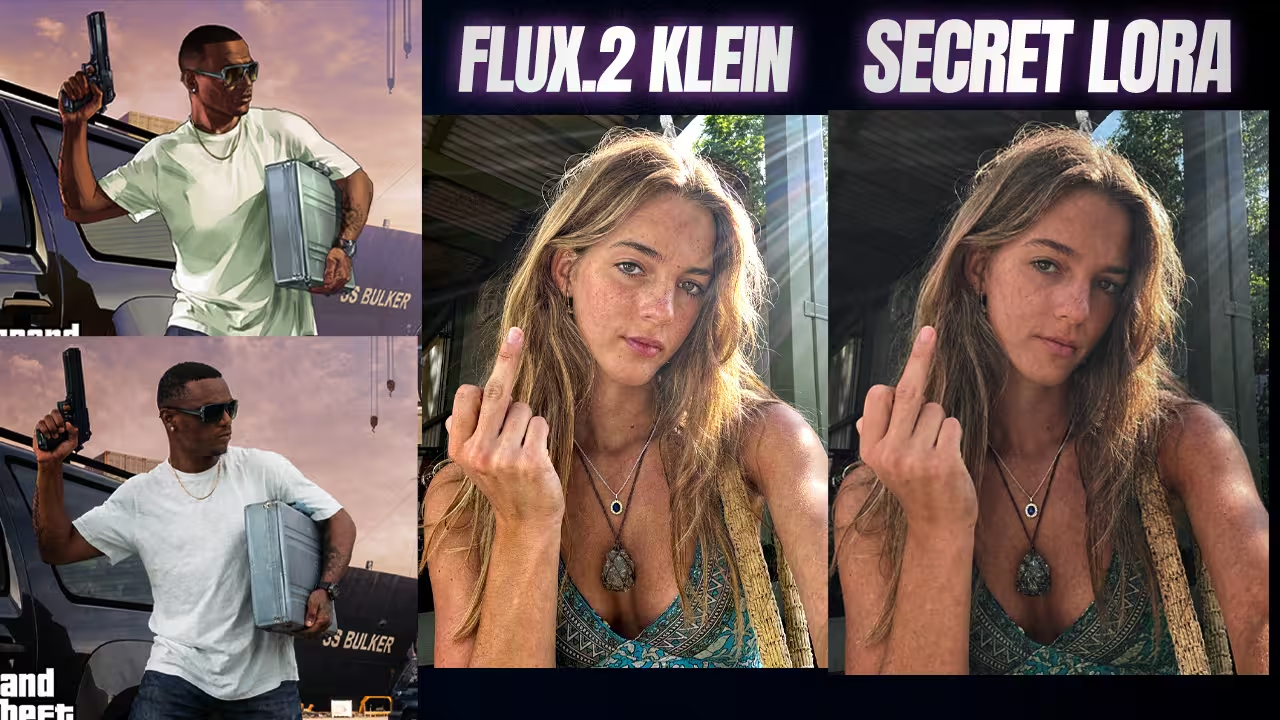
If your Flux 2 Klein 9B generations look like cheap plastic dolls or suffer from washed-out, generic lighting, your workflow is missing critical detail enhancement.
I built a specific ComfyUI workflow using the new Enhanced Details LoRA to completely eliminate this fake AI look. Here is exactly how I preserve original lighting and achieve photographic realism.
Files to Download (Safety First)
- File Name:
Flux2-Klein-9B-Enhanced-Details.safetensors- Context: The essential LoRA required to stop the base model from aggressively pushing bright lighting and generic skin tones. Place this in your
ComfyUI/models/loras/folder. - Safety Check: I have scanned this locally. Safe to use
- Context: The essential LoRA required to stop the base model from aggressively pushing bright lighting and generic skin tones. Place this in your
Step-by-Step Technical Guide: Setup & Prompting Rules
The base Flux.2 Klein 9B model is an absolute beast for speed and quality, but it has one major problem. When you ask it to make something realistic, it aggressively pushes the image toward bright lighting and generic, standard skin tones, washing out the soul of your original art.
Follow these exact steps to bypass this issue and satisfy the model’s parameters:
- 1. Select the LoRA: Inside the ComfyUI LoRA group on your canvas, select the downloaded
Flux2-Klein-9B-Enhanced-Detailsfile. - 2. Dial in the Steps: You must run this specific LoRA at exactly 16 steps to achieve the best photographic realism.
- 3. Apply the Trigger Rule: To make this LoRA work, you must follow a very specific prompting rule using the trigger word “realistic”.
- 4. Format the Prompt: You need to structure your text prompt exactly like this: “Turn [XYZ] image into a realistic photograph”


