


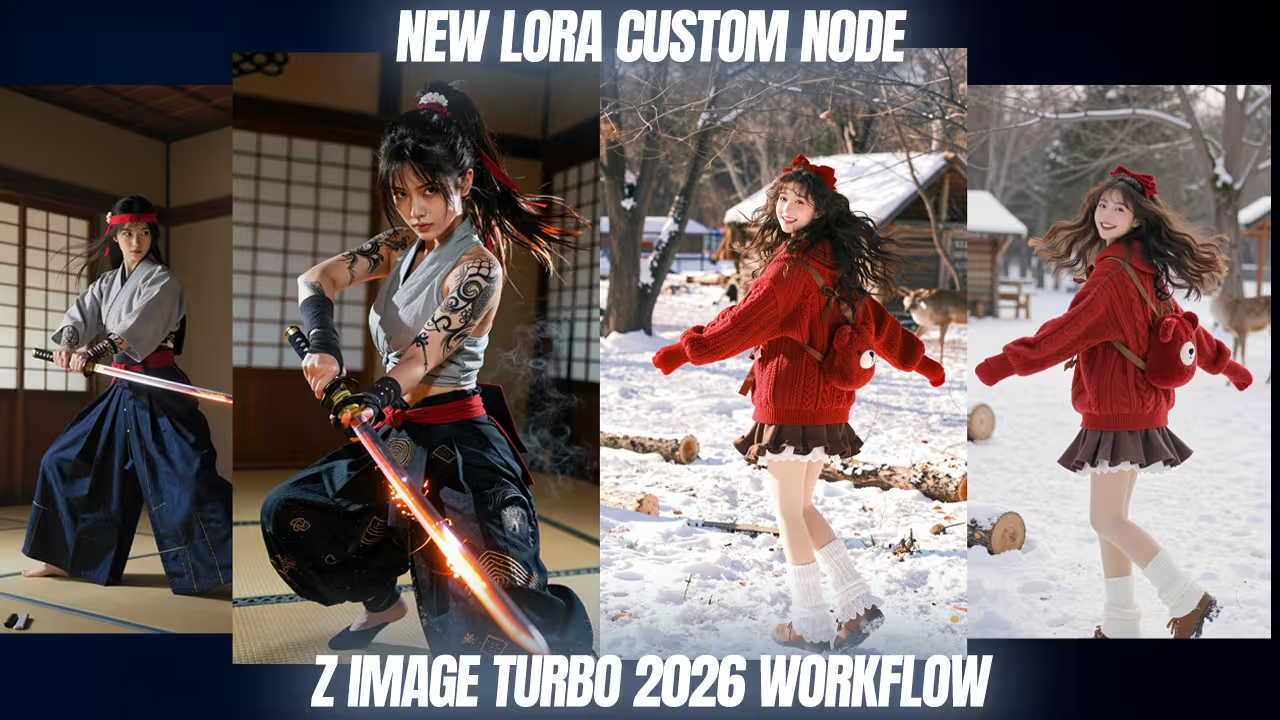
Fix Flat Lighting in Z-Image Turbo: Your Complete Guide
Do your Z-Image Turbo generations look flat? You are not alone. Fake-looking skin ruins great concepts. Missing shadows destroy the mood.
The problem hides in your ComfyUI setup. The default LoRA node silently deletes your image data. Fast AI models rush through their work. They finish in just eight steps. This speed breaks the cinematic lighting.
Let’s fix this issue permanently today.
The Essential Files You Need
You need three specific files to correct this workflow. I scanned these locally. They are completely safe to use.
- Z-Image-Turbo-Lora-Stack-V4: This custom node replaces your broken default node. It stops the silent data loss.
- Flow-DPO.safetensors: This is a photorealistic lighting LoRA. Place it in your
ComfyUI/models/loras/folder. It teaches the AI real shadows. - Qwen VL Node (by aistudynow): This acts as your vision expert. It writes highly detailed prompts automatically.
How to Fix the Lighting Bug
First, delete your default ComfyUI LoRA node. Do it right now. If you keep it, the model throws away your data.
Next, drag my new V4 stack onto your canvas. Select the Photorealistic Lighting LoRA. Connect it directly to the main model. Think of this file like corrective glasses. It shows the AI how to draw rich skin textures quickly.
I tested this on an RTX 4080 graphics card. The old node gave me plastic skin. The new stack fixed the colors instantly. It added real pores to a character in just eight steps. You must use this correct architecture.
Automate Your Image Prompts
Z-Image requires long, detailed text prompts. Typing them manually takes hours. Let the Qwen VL node do the hard work instead.
You can load a reference image. The vision model will write the perfect description. Or, you can type a basic idea. The node expands your short idea automatically. It adds expert photography terms like “creamy bokeh” and “teal-green color grade.”
I tested a simple text prompt for a mermaid portrait. The first result was boring. I ran it through Qwen VL. It added cinematic realism immediately. I did not type a single technical word.
Add Texture and Upscale
Do you hate soft textures? Turn on the noise injection toggle. This adds mathematical noise. It brings back film grain. It gives your image a gritty, realistic texture.
Finally, turn on the SeedVR 2 group. You will find it at the bottom of the workflow. This group upscales your output. It gives you crisp, high-resolution details.
I generated a night portrait on a 12GB graphics card. The first render lacked contrast. The noise toggle fixed it. SeedVR 2 upscaled the image perfectly. It stopped memory crashes. It skipped long load times.
