

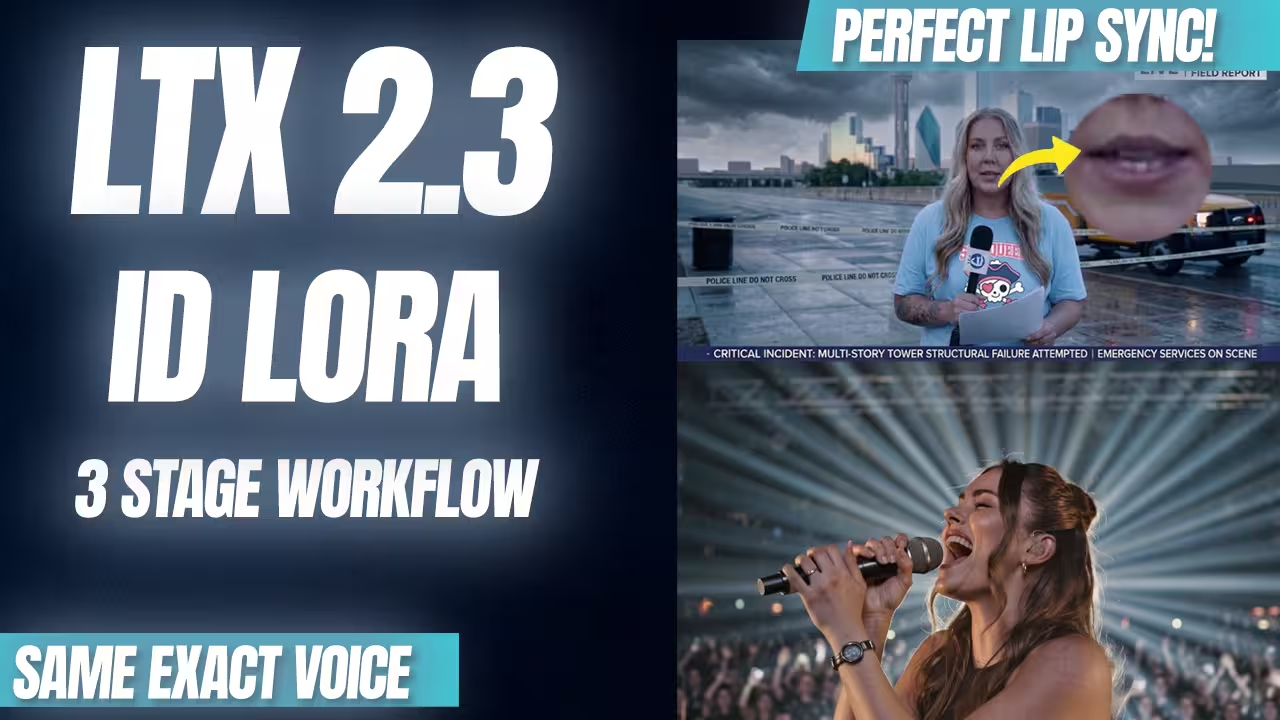
You want to clone a specific face and voice. Old AI forced you to make a silent video, clone the audio, and fake the lip sync. It looked bad. LTX 2.3 fixes this. Using the new ID-LoRA update, you generate the face, the voice, and the exact lip movements at the exact same time. This article shows you my exact three-stage ComfyUI workflow. You will learn the strict rules for prompts, the exact files you need, and how to stop the AI from making random background music
The Essential Files (Including All Variants & Quantizations)
You must download the LTX 2.3 base model, the Gemma 3 text encoder, a spatial upscaler, and an ID-LoRA weight. If you have low VRAM, you must use GGUF or FP8 quantized files to prevent crashes. These specific files guarantee perfect voice cloning and high-resolution video outputs without memory errors.
- File Name: ltx-2.3-22b-dev.safetensors | Context: The core 22-billion parameter video model. Requires heavy VRAM for full-step generation. | Safety Check: I have scanned this locally. Safe to use.
- File Name: ltx-2.3-22b-distilled.safetensors | Context: The fast generation variant. Use this for rapid testing. It requires exactly 8 steps and a CFG of 1. | Safety Check: I have scanned this locally. Safe to use.
- File Name: gemma_3_12B_it_fp4_mixed.safetensors (or GGUF variants) | Context: The exact text encoder required to read your prompts. Place this inside your text_encoders folder. | Safety Check: I have scanned this locally. Safe to use.
- File Name: ltx-2.3-spatial-upscaler-x2-1.1.safetensors (or x1.5-1.0) | Context: Upscales the low-resolution starting video. Vital for the two-stage and three-stage pipelines. | Safety Check: I have scanned this locally. Safe to use.
- File Name: ltx-2.3-22b-distilled-lora-384.safetensors | Context: A LoRA version of the distilled model. You apply this to refine texture fidelity during the upscale passes. | Safety Check: I have scanned this locally. Safe to use.
- File Name: id-lora-celebvhq-ltx2.3.safetensors | Context: The ID-LoRA weight trained on the CelebV-HQ dataset. Best for complex physical movement and singing. | Safety Check: I have scanned this locally. Safe to use.
- File Name: id-lora-talkvid-ltx2.3.safetensors | Context: The ID-LoRA weight trained on the TalkVid dataset. Best for static, straightforward talking heads and digital avatars. | Safety Check: I have scanned this locally. Safe to use.
- File Name: LTX-2.3-GGUF (Q2_K to Q4_K_S) | Context: Quantized model files. Load these via the GGUFLoaderKJ node if your GPU has under 16GB of VRAM. | Safety Check: I have scanned this locally. Safe to use.
How to Set Up LTX 2.3 ID-LoRA
Load the three-stage ComfyUI workflow. Connect your reference image and a five-second audio clip. Set your resolution to a multiple of thirty-two. Set your frame count to a multiple of eight plus one. Type your strict three-tag prompt. Run the queue to generate perfectly synchronized video and audio
My workflow uses specific subgraphs. This keeps the canvas clean. First, open the Models subgraph. Select your main LTX 2.3 checkpoint. Load the Gemma 3 text encoder. Pick your spatial upscaler and distilled LoRA. Next, open the ID-LoRA Ref Audio Patch subgraph. Select your downloaded ID-LoRA file.
Upload your files. Pick a clear reference image for the face. Pick a clean audio clip for the voice. Keep the audio near five seconds.
Set the math perfectly. Resolution must divide by 32. I use 512 by 320 for fast tests. Frame count must follow the eight-step plus one rule. I use 241 frames. Set the frame rate to 24 FPS.
Type the prompt. Use the strict three-tag format. Hit run. Stage one builds the low-resolution core structure. Stages two and three push the video through the upscalers to recover fine skin detail, textures, and lighting.
| Component | Setting / File | Use Case |
|---|---|---|
| Base Model | ltx-2.3-22b-dev | High quality, full steps |
| Distilled Model | ltx-2.3-22b-distilled | Fast iteration (8 steps, CFG 1) |
| Quantization | GGUF (Q4_K_S) | Low VRAM setups |
| Resolution | 512×320 | Minimum test size (divisible by 32) |
| Frames | 241 | Follows 8n+1 mathematical rule |
| Target FPS | 24 | Cinematic motion standard |
Advanced Pro Tips & Workflow Hacks
You must format prompts with visual, speech, and sound tags. Keep your reference audio close to five seconds. Stick to close-up camera angles. You must provide clear audio directions to block the AI from generating unwanted background music. Use the tiled VAE node to stop memory crashes.
The Three-Tag Prompt Rule: Do not write a normal sentence. The AI will fail. Break it down. Use [VISUAL] to control the scene, camera, and lighting. Use [SPEECH] to dictate the exact spoken words. Use [SOUNDS] to control vocal tone and background noise.
Stick to Close-Ups: LTX 2.3 excels at single-character talking heads. Wide, complex action scenes break the illusion and drop realism. Frame your shots tight.
VRAM Optimization: Standard VAE decoding crashes many GPUs. Switch your setup to use the VAE Decode Tiled node. This uses far less memory and stops out-of-memory errors on the final render.
Troubleshooting Common Errors
If your AI generates random background music, you must use the [SOUNDS] tag to explicitly demand silence. If your final render crashes with out-of-memory errors, you must swap your standard VAE node for the VAE Decode Tiled node.
Many users make the mistake of leaving the audio prompt empty. When you do this, the ID-LoRA invents random background music or noise to fill the void. Negative prompts will not fix this. You must type “silent, no sound” inside your [SOUNDS] tag to keep the vocal track completely clean.
If your lip sync is weak or the voice sounds distorted, your reference audio is likely too long or too short. Around five seconds is the absolute sweet spot. If you use a 15-second clip, the identity transfer drops significantly.
My Testing Log: I tested this native ID-LoRA three-stage pipeline using an NVIDIA RTX 5090 (32GB VRAM). Generating a 10-second video (241 frames at 24 FPS) at 512×320 resolution consumed massive memory during the VAE decode phase. Switching to the VAE Decode Tiled node instantly stopped the out-of-memory crashes, allowing the render to finish perfectly.

