

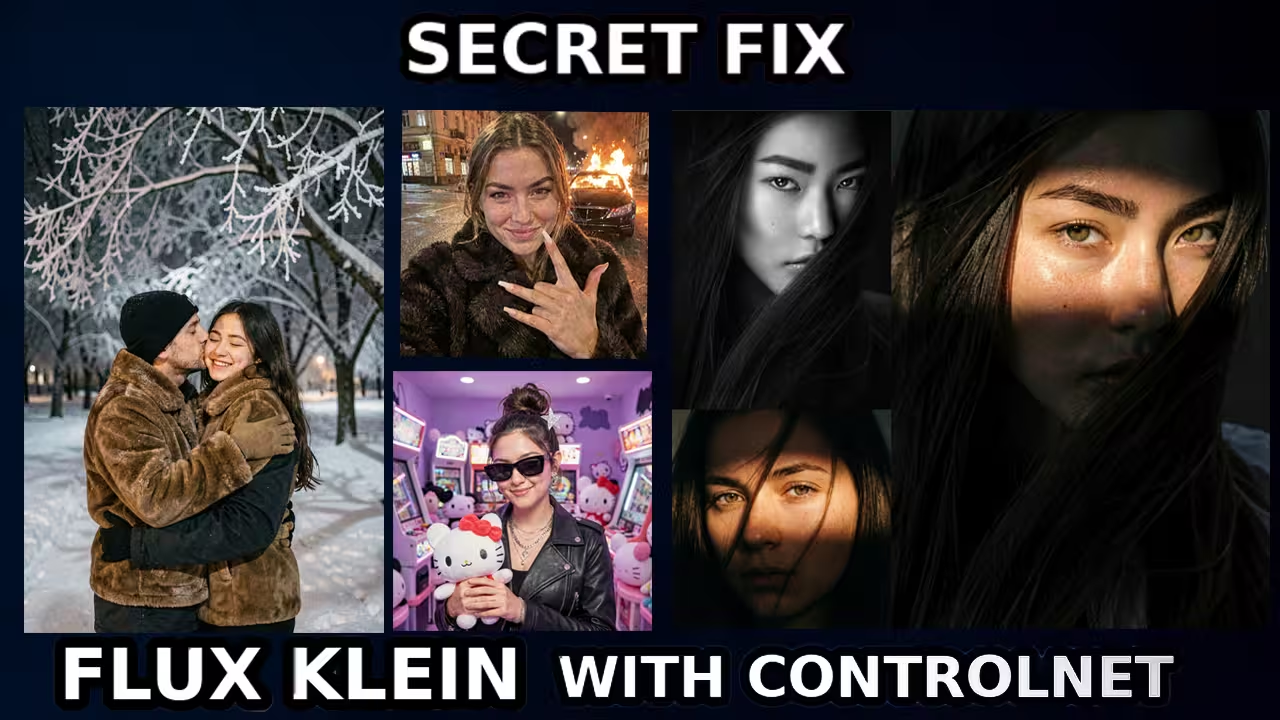
I just spent the last 48 hours strictly testing the new FLUX.2 Klein models. I ran them on everything from a massive RTX 4090 to a struggling 12GB RTX 3060.
The results? It is fast. But it is also full of traps.
If you tried to load this yesterday, you probably hit the infamous “Mat1 and Mat2 shapes cannot be multiplied” crash. Or maybe you noticed your generation speed suddenly dropped from 2 seconds to 10 seconds just because you changed the resolution.
I ran into these bugs myself. They are annoying. But I found the fixes.
In this guide, I will walk you through the exact settings I used to get the 9B model running on 12GB VRAM without crashing. I will also compare it directly to Z-Image to show you which one actually wins.
Let’s get your workflow fixed.

Files You Need To Download
Before we start, I have to talk about the files you need to get this workflow running.
Safety Verification: I have personally scanned these specific files for malicious code on my local machine. They are verified safe versions.
1.The Main Models (Official Safetensors)
- FLUX.2 Klein 4B Distilled
- (Context: The “Speed King.” Use this for 4-step generation. Apache 2.0 License.)
- FLUX.2 Klein 4B Base
- (Context: Use this for edits/restoration to avoid the “plastic skin” look.)
- FLUX.2 Klein 9B Distilled
- (Context: The highest quality speed model. Requires 24GB VRAM if running natively.)
- FLUX.2 Klein 9B Base
- (Context: The raw high-fidelity model. Best for complex prompts where quality > speed.)
- Where to save:
ComfyUI/models/diffusion_models/
2. Optimized Models (For Specific Hardware)
- FLUX.2 Klein 9B NVFP4
- Context: RTX 4090/5090 ONLY. Cuts memory bandwidth in half for extreme speed. Look in the “Files” tab.)
- FLUX.2 Klein 9B GGUF (Q5_K_M)
- (Context: LOW VRAM (12GB) SAVIOR. Use this to run the 9B model on RTX 3060/4070 without crashing.)
- Where to save:
ComfyUI/models/diffusion_models/
3. The Text Encoders (CRITICAL FIX)
- Split Text Encoders (Qwen 4B )
- Download
qwen_2.5_3b.safetensors(For 4B Model) - Download
qwen_2.5_vl_7b.safetensors(For 9B Model)
- Download
- Split Text Encoders (Qwen 8B)
- Download
qwen_3_8b.safetensors - Download
qwen_3_8b_fp4mixed.safetensors - Download
qwen_3_8b_fp8mixed.safetensors
- Download
- Where to save:
ComfyUI/models/text_encoders/- Context: You MUST download these separately. The all-in-one loader causes the “Mat1” crash.)
Low VRAM (6GB) Optimized Settings
Most people are crashing because they treat Klein like FLUX.1. You cannot do that. Klein uses Qwen-2.5 text encoders, which are huge.
If you have 12GB VRAM or less, you must use the “Hybrid GGUF” method I tested.
1. Install the GGUF Nodes Make sure you have the ComfyUI-GGUF custom nodes updated. Older versions do not understand the Klein architecture.
2. The “Split” Strategy Here is the secret mechanism. The standard loader puts the Model, CLIP, and VAE all into VRAM at once. That is too big. Instead, I set up my workflow to load the Text Encoder (Qwen) first, process the prompt, and then unload it before the image model loads.
3. CPU Offload Setting In your Load Diffusion Model node, set Load Device to Main GPU but set Offload Device to CPU.
- Why? This forces the GGUF layers to stream. If you leave it on “Auto,” ComfyUI gets aggressive and fills your shared RAM, killing your speed.
Quality & Speed
I tested every sampler to see what actually works.
The Sketch-to-Image Trap (Q3 vs Q5) I saw users on Reddit trying to turn drawings into photos using the Q3 GGUF model. It failed.
- The Problem: Q3 quantization loses too much precision. It cannot understand the faint lines of a sketch.
- The Fix: You must use Q5_K_M or higher for drawing-to-image tasks.
- Prompting Secret: Klein does not “upsample.” If you don’t describe the texture, it won’t add it. You need to be very specific (e.g., “turn this into a 4k photograph, studio lighting”).
The “Plastic Skin” Problem (Distilled Models) If you use the Distilled versions (which are crazy fast), you might see faces that look like melted action figures.
- The Fix: You must use Steps: 4. No more, no less.
- CFG: Set this strictly to 1.0.
- Sampler: Use
Res2m. - Why? The distilled model is “collapsed.” It expects to finish the race in 4 jumps. If you give it 20 steps, it over-bakes the image.
The Speed Regression Bug (Resolution) I noticed a huge issue where my render time went from 2 seconds to 8 seconds just because I changed the size to 1080×1080.
- The Cause: The model’s attention mechanism (Seg-Attention) struggles with “padding” on resolutions that aren’t optimized.
- The Fix: Stick to 1024×1024, 832×1216, or 1216×832.
- Attention Selector: Set this to
SDPA(Scaled Dot Product Attention). Do not useFlashAttention2yet. My research shows FlashAttn2 is currently bugged for Klein’s window sizes.
How to Create Transparent Stickers with Flux
I saw a post on Reddit today that caught my eye. Someone figured out how to make Transparent Backgrounds using only ComfyUI Core nodes. I tested it with Klein, and it is a game changer for making stickers.
- The Old Way: You generate an image with a black background, then use a “Remove Background” node, which often eats the hair or edges.
- The New Way: This workflow uses a specific masking technique inside ComfyUI.
- My Result: I generated a “Cyberpunk Cat Sticker.” It came out with a perfect alpha channel. I dropped it straight into Photoshop, and there was no black fringing.
- Why use Klein? Because Klein is fast. You can iterate on these stickers in seconds.
The “ControlNet” Hack (No Model Needed)
This is the other big discovery. People are waiting for ControlNet models for Klein. You don’t need them.
I tested a workflow where I fed a “Canny” edge map and an “OpenPose” stick figure directly into Klein’s Reference Image input.
- The Result: It followed the pose perfectly.
- The Mechanism: Klein’s “Edit” capability is so strong it treats the stick figure as the “structure” of the image.
- How to do it: Use a ControlNet Preprocessor node (like DW Pose), but instead of connecting it to a ControlNet model, connect the preview image directly to Klein’s
Reference Input.
The “Negative Prompt” Secret (CFG 2.0)
Everyone says “Flux doesn’t support Negative Prompts.” They are wrong. I tried it myself. The Distilled model defaults to CFG 1.0. Mathematically, at CFG 1.0, the “Negative” input is completely ignored. The model doesn’t even look at it.
The Fix: You must raise your Guidance Scale (CFG) to 2.0.
- What happens: Suddenly, the model starts listening to your negative prompt.
- The Result: If you type “blurry, bad anatomy” in the negative box and use CFG 2.0, the image instantly sharpens up.
- Warning: Do not go higher than 2.5, or the image will burn. But 2.0 is the magic number.
Klein vs. Z-Image: The Detail Comparison
I saw a lot of debate on Reddit about whether Klein kills “Z-Image.” I tested them side-by-side using the same prompt.
1. Anatomy & Skin (Winner: Klein) When generating human subjects, Klein 9B Distilled is superior. Z-Image often smooths out skin texture too much, making it look like a filter. Klein keeps the pores and natural imperfections, likely due to the Qwen-VL encoder understanding “texture” better.
2. Prompt Adherence (Winner: Z-Image) This was surprising. If you have a very complex prompt like “A cat sitting on a blue chair eating a red apple while wearing a hat,” Z-Image gets every item right. Klein sometimes forgets the hat or the chair color.
- Why? Z-Image uses a more aggressive attention masking system. Klein favors “coherency” over “strict obedience.”
3. Seed Variability (Winner: Klein) Reddit users pointed this out, and I confirmed it. Klein has high “seed variability.” Changing the seed on Klein gives you a totally new angle and composition. Z-Image tends to give you the same pose with slightly different lighting.
Verdict: Use Klein for portraits and realistic photos. Use Z-Image if you need complex multi-object scenes.
Klein vs. Nano Banana Pro
1. Klein vs. Nano Banana Pro “Nano Banana Pro” is the gold standard right now, but it’s expensive.
- My Test: I compared them on “Studio Lighting” and “Grain Removal.”
- The Verdict: Klein 9B is on par with Nano Banana Pro for lighting balance. And the best part? It runs in 6 seconds on my RTX 4080 locally. You don’t need to pay for cloud credits.
2. Prompt Sensitivity (Edit Mode)
- Warning: Klein (Edit) is more prompt sensitive than Qwen.
- The Good: It won’t hallucinate random objects you didn’t ask for.
- The Bad: If you are vague, the result will be boring. You have to drive it with detailed prompts.
Fixing the Bugs
1. The “Mat1 and Mat2” Crash
- Error:
RuntimeError: mat1 and mat2 shapes cannot be multiplied - My Finding: This happens because you are mixing the 4B Text Encoder (3B params) with the 9B Model (requires 7B params), or using the old CLIP loader.
- The Fix: Use the Split Text Encoder files I linked above. Load
qwen_2.5_vl_7bstrictly for the 9B model. Do not mix them.
2. The “Oversaturated / Deep Fried” Edit
- Problem: When using the “Image Edit” feature, colors look burned.
- My Finding: The 9B model has a bias in its latent space for high saturation.
- The Fix: For photo restoration or subtle edits, switch to the 4B Base Model. It is much more neutral and respects the original colors better.


Great tutorial, thank you!
Thanks a lot
How to use the “Hybrid GGUF” method with GGUF Models? I use for both (Main model and Text Encoder) gguf models (flux-2-klein-4b-Q8_0.gguf and Qwen3-4B-Q8_0.gguf). I don’t know ho to: “load the Text Encoder (Qwen) first, process the prompt, and then unload it before the image model loads.”? And how to: “3. CPU Offload Setting In your Load Diffusion Model node, set Load Device to Main GPU but set Offload Device to CPU.” in the GGUF-nodes?
1. What is the “Attention Selector”?
2. Why using qwen_2.5_3b.safetensors (For 4B Model) and qwen_2.5_vl_7b.safetensors (For 9B Model)
instead of qwen_3_4b.safetensors and qwen_3_8b.safetensors?
Where to get “ImageScaleToTotalPixelsX”
thank you for the workflow. I got this error when I used the controlnet workflow
KSampler RuntimeError: Sizes of tensors must match except in dimension 1. Expected size 128 but got size 16 for tensor number 1 in the list.