

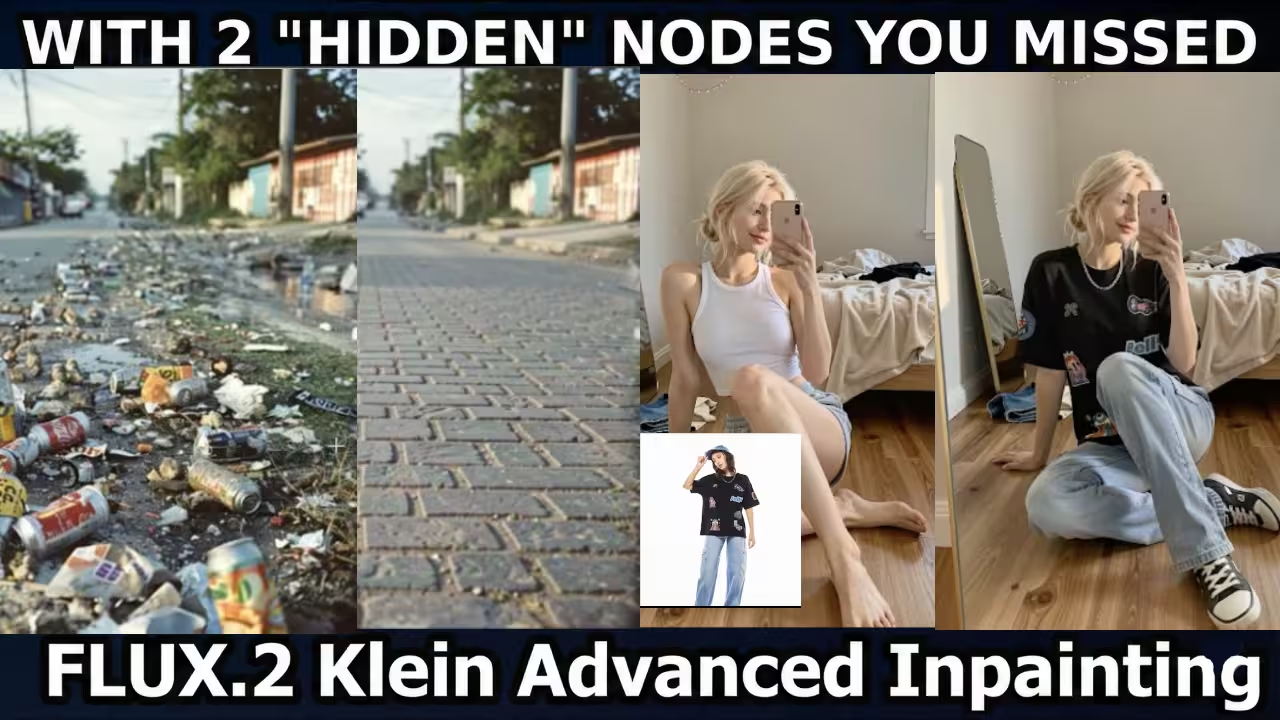
I tested this myself. Most users struggling with ComfyUI Inpaint workflows for Flux 2 ComfyUI run into the same issues. You get blurry results, or the AI ignores your prompt. Even worse, you might hit the “Generic Face” bug found in GitHub.
I spent days digging through Chinese forums to find the Z-Image optimization and the ComfyUI Speed Regression Fix. If you want to master Flux Klein without the headaches, you need this guide. We will fix the Wan 2.2 Generic Face Fix issues and apply OVI Low VRAM settings to make this run on any GPU.
The Problem with Standard Inpainting
I see many people using the standard VAE Encode for inpainting. This is a mistake.
If you have a 4K image and want to fix a face in the distance, that face is only a few pixels wide. The AI cannot see it. You will get a blurry, low-quality mess. I solved this by using the Inpaint Crop node.
Why Inpaint Crop is Mandatory
This node acts like a smart magnifying glass. I configured it to cut out only the masked area. The model generates pixels for that small square, not the whole image.
This saves memory. More importantly, it upscales that crop to the model’s native resolution. The AI can finally see what it is doing. The Inpaint Stitch node then shrinks it back down and blends it.
Research Note: According to Chinese forum “Z-Image” findings, you must set the
context_expand_factorto at least 1.2. If you leave it at 1.0, the edges will not blend.
The Solution: FLUX Enhancer
Flux Klein has a personality problem. It listens to text prompts too well. If you type “beautiful woman” to fix lighting, it often changes her entire face.
I use the FLUX Enhancer Node to fix this. It manipulates the Conditioning Tensors inside the model.
Setting 1: Dampen Mode (Restoration)
Use this for Single Image Restoration. This turns down the volume of your text prompt. It forces the model to respect the original image structure.
- My Setting: Dampen 1.1 to 1.3.
- The Prompt: Do not describe the person. Use “File-Level Prompting.” Type: “Remove blur and noise, histogram equalization, unsharp mask, fix exposure.”
Setting 2: Linear Mode (Relighting)
Use this when you want to change the lighting but keep the subject.
- My Setting: Linear Mode.
- The Prompt: Use photographer terms like “Softbox illumination camera-left, volumetric light, rim light.”


did you try out the FASHN VTON v1.5?
Hi, it sdeems both the worklows are same.
Hmm… I don’t see any difference between those workflows…
Love these workflows but getting an error as of today – which package is this node in? {
“id”: 124,
“type”: “b44cf577-fffa-4d81-85d9-e2b5b0e2c17c”,
“pos”: [
317.4048073248062,
917.9598065967527
],
“size”: [
240,
86
],
“flags”: {},
“order”: 12,
“mode”: 0,
“inputs”: [
{
“label”: “positive”,
“name”: “conditioning”,
“type”: “CONDITIONING”,
“link”: 207
},
{
“label”: “negative”,
“name”: “conditioning_1”,
“type”: “CONDITIONING”,
“link”: 216
},
{
“name”: “pixels”,
“type”: “IMAGE”,
“link”: 218
},
{
“name”: “vae”,
“type”: “VAE”,
“link”: 210
}
Please update the provided workflows in the article. They do not work in their current state. The face swap for example results in the same reference image without any change or swap.
Thank you very much.